
Adapt the Plan When Projects Change
Even a realistic weekly plan can stop fitting. A delivery moves, someone becomes unavailable, work takes longer than expected, or a client asks for something new. Projects don't always run as initially planned, and it's not a problem on its own. Problems start when you act on a new update in isolation, before checking how it affects other tasks, commitments, resources, or projects.
In this lesson, you'll learn how to react to the recent changes and ad hocs and keep all your projects organized.
In Lesson 2, you set up a daily brief that can surface new information. In Lesson 3, you built a feasible weekly view and a health check that shows when the week no longer works. This lesson starts when a change can't be handled with a routine update or the flexibility that's already been agreed. AI can help you trace the impact and compare practical ways to respond.
By the end of this lesson, you'll be able to turn a disruptive change into a reviewed decision, update the affected plans, communicate the approved change, and check that the week works again.

Choose the Right Response to the Change
Evaluate Project Changes Before You React
Projects rarely change in one neat, predictable way. A supplier may move a delivery, a client may request extra work, a contractor may cancel, someone may become unavailable, or a task may take longer than expected. Some changes are small. Others can disrupt several projects at once.
Treat the change as routine when confirmed evidence shows that it fits within already-agreed flexibility and leaves these areas unchanged. It may still require a factual tracker update or a work-block adjustment, but it doesn't require a new tradeoff.
Treat a change as a significant conflict when it could put any of the following at risk:
- A confirmed scope, price, payment term, acceptance criteria, handoff, or deadline
- The person, dependency, or shared resource the work needs
- A project's cost, profitability, or early cash needs
- Capacity that was already protecting another project
- A required quality, safety, legal, or compliance condition
If the impact is unclear or several small changes may add up to affect one of these areas, don't classify the change as routine yet. Record the uncertainty and check the combined effect first.
Before changing the plan, check exactly what the new information confirms. Record where it came from and when, then separate confirmed facts from requests, estimates, and missing details. Use that distinction to choose the right response.

Choose the Response
Once you've separated confirmed facts from requests, estimates, and unknowns, decide how much of the plan — if any — needs to change. The impact of the new information determines which of the responses to use. Before you react, check five things:
- Evidence: Is the change confirmed, or is it still a request, estimate, or missing detail?
- Commitment: Could it change something you've already promised about the scope, price, result, or timing?
- Plan: Does it affect a task's Status, owner, dependency, work block, or another project?
- Capacity and resources: Does the right person or shared resource still have enough room?
- Business effect: Could the change add meaningful cost, affect cash timing, or require someone's approval?
After you did the check, you can now choose the response option:
- If the new information doesn't affect current work or commitments, choose No plan change.
- If a confirmed project fact has changed but the effect fits within already-agreed flexibility and doesn't alter scope, price, ownership, or a commitment, make a Routine update. Update the project tracker, the weekly view and the calendar. Then rerun the health check.
- If the change may affect scope, price, a confirmed date, ownership, capacity, a shared resource, or another project, mark it Needs a decision. Keep the affected work marked this way until your or another project or task owner approves a workable option. In this lesson, you’ll focus exactly on this type of project change and how to handle it.
Record the Change Without Pretending You've Decided
After you check the impact and classify the response, update the current records with any facts that are already confirmed. If a final response still needs a decision, record those facts now, but leave any proposed changes to dates, owners, scope, or commitments unconfirmed until you approve an option.
Update only the fields supported by the confirmed information. If the change affects a task's current state, update status. For example, if materials are delayed and installation can't start, set installation to Waiting. If the client has only requested a new date, keep the current Status and record the requested date as unconfirmed.
This keeps the tracker accurate without turning an estimate or request into a new promise. You'll update the final action, timing, and commitments after you've chosen and confirmed a response.
For example, the small remodeling business from the earlier lessons manages several client jobs at once and keeps the current project info for each job in a project tracker.
One active job is a kitchen renovation. Its tracker shows materials due Tuesday, installation planned for Wednesday, and a confirmed Friday client handoff. On Monday, the supplier changes the estimated delivery to Thursday. The materials haven't arrived, and the installer hasn't confirmed a new time.
What should the owner do first?
Once a change needs a decision, compare it with the current project trackers and weekly view to see what now competes for the same time, person, resource, or money.
Find the Conflict and Possible Responses
Check the Change as Soon as It Appears
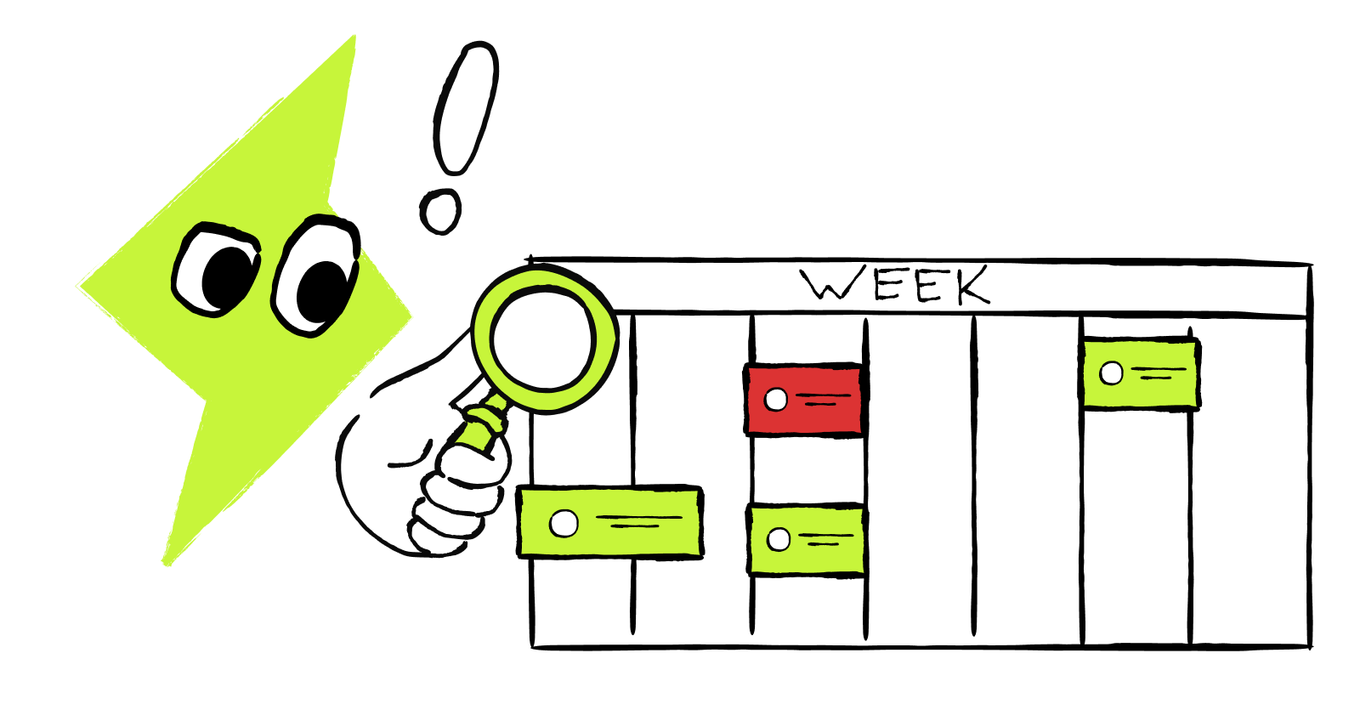
The daily brief and the weekly health check from earlier lessons can show that the whole week no longer holds your projects together and notify you about any project updates. You don't have to wait for either one: when an ad hoc request or urgent update arrives, you can ask AI to check its effect immediately.
If AI has approved access to your tracker, weekly view, and calendar, point it to the affected records. If it doesn't, paste or export only the relevant message and rows. Ask it to compare the update with the current plan, show whether a conflict appears, and suggest possible responses without changing anything.
Define What Now Competes
A tradeoff is easier to solve when you can describe it precisely. "The week is too busy" isn't enough. Ask AI to reduce the conflict to one sentence:
[Work or commitment A] and [work or commitment B] need the same [person, time, resource, or money], and both can't happen under the current conditions.
Then check the result against the priorities and flexibility already recorded in the weekly view:
- Which confirmed commitment or high-priority task must stay protected?
- Which lower-priority work can move within flexibility that's already been agreed?
- Which missing fact or approval must be checked before you choose?
Measure the Gap You Need to Solve
You already know how to assess project feasibility and plan work against real weekly capacity. Now apply those skills to the part of the plan affected by this change. Use current records, keep capacity tied to the person who can actually do the work, protect deliberately open time, and confirm any reassignment before treating it as a solution.
Check only the constraints the change can affect:
- The remaining usable capacity for each affected person
- A shared specialist, vehicle, room, equipment, or other limited resource
- Dependencies that control when work can begin
- Added cost and any material effect on project economics or cash timing
- The consequence of moving each commitment
- When the conflict must be resolved
Let’s practice. Use these checks to find the gap that still needs a decision. For example, one specialist has 8 usable hours on Thursday. A confirmed Friday handoff requires 6 of those hours. A new client requests 4 hours of work on Thursday. Two hours of flexible internal work can move.
What remains after the internal work moves?
Now bring the new update and the current planning records into one AI review. The prompt below asks AI to verify what changed, expose any conflict and remaining gap, and return a small set of possible responses. You'll use that output as the starting point for your decision.
AI can highlight the conflict, and suggest how to resolve it. It gives you the list of options — let’s see how to choose the one your business can actually support.
Compare Realistic Options and Choose
Use the Smallest Change That Makes the Week Work
The conflict and remaining gap show what the response needs to solve. Start with the smallest practical change that restores a workable week while protecting the strongest commitments. Compare two or three realistic options, such as:
- Move flexible work within an agreed window
- Change the order of work without breaking a dependency
- Reassign work to a qualified person who accepts it
- Add qualified outside help when availability and cost are confirmed
- Propose a different date, scope, price, or payment arrangement
- Defer or decline a new request
A workable option aligns the calendar with the people, dependencies, resources, costs, and agreements required to deliver it.
Compare the Same Facts in Every Option
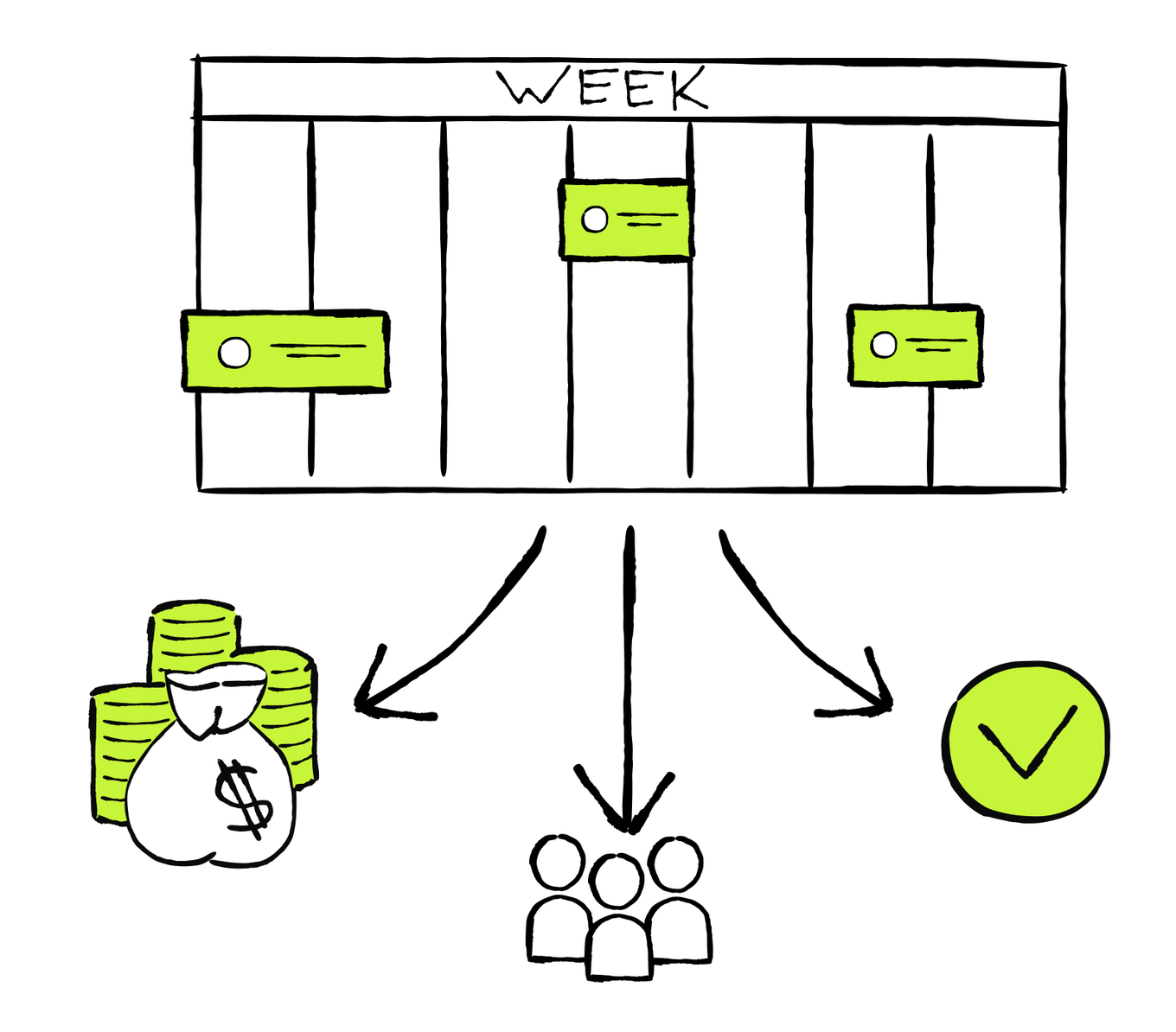
Once you have two or three realistic options, compare them using the same criteria. Each option may close the immediate gap while creating different effects on people, commitments, other projects, and business costs. A consistent comparison makes those tradeoffs visible and helps you choose an option the business can support.
For each option, identify:
- Commitments: Which confirmed commitments stay protected? Which date, scope, price, or result would change?
- Operational fit: Do the required people have the skills, access, and time? Do the dependencies and shared resources align?
- Business effect: How would the option affect costs, profitability, and cash timing?
- Conditions: Which facts, approvals, or agreements must be confirmed before the option can work?
- Consequences: Who and which projects would be affected, and how?
- Fallback: What will the business do if a required condition isn't confirmed by the decision time?
A faster option can still be a poor business decision. Use the financial rules you already applied in Lesson 1 when evaluating the project scope. Ask AI to show the known inputs and calculations, and keep missing prices or availability visible. A quote may confirm a price, but it doesn't confirm the provider's availability or acceptance.
You now have the conflict, the remaining gap, and a few possible responses. The next prompt compares every option against the same criteria and explains its recommendation, so you can review the reasoning without handing the final decision to AI.
Compare Realistic Options
Choose the Option, Conditions, and Fallback
The comparison now shows what each option protects, requires, and changes. Use it to make a business decision. Choose the option that closes the measured gap, protects the strongest confirmed commitment, fits the verified capacity, resources, and dependencies, and meets the business's rules. Record the decision in five parts:
- Chosen option: The response you will pursue
- Protected commitment: The promise or priority it preserves
- Conditions: The availability, cost, approval, or agreement still required
- Decision time: The latest time those conditions can be confirmed
- Fallback: A workable response you can use if a condition remains open
If several options meet those requirements, choose the one with the smallest effect on other projects and people.
Capture the complete decision in one statement:
“I will [chosen option] to protect [commitment]. This depends on [conditions], which must be confirmed by [decision time]. If they remain open, I will [fallback].”
For the design studio example, the owner might decide:
“I will protect the confirmed Friday launch and use qualified outside help for the rush request. This depends on a qualified freelancer confirming Thursday availability and a fee that meets our business rule by Wednesday at noon. If either condition remains open, I will offer the rush client the next date supported by our capacity.”
If all conditions are confirmed and the decision is yours, approve the option. If someone else needs to agree, share it as a proposal and keep the current commitments in place until they respond.
Let’s dive deeper into the project update communication: record and convey the confirmed change, and check that the whole week and all the projects still work.
Put the Decision Back Into Your System
Once you’ve chosen an option, it sets the new direction for the project, and you need to negotiate or communicate it to the relevant people. The records and people affected may still reflect the old plan. Bring them back into alignment: update the source project first, refresh the week, check that it still works, and then communicate the result.
You can apply an internal change that stays within current client agreements after the right person approves it. If the option changes a client’s scope, price, date, or payment terms, send it as a proposal and keep the current commitment unchanged until the client agrees. Raise the issue before the deadline, explain the impact clearly, and propose only an option the plan can support.
Once the required agreements are in place, gather the confirmed option, the affected project records, the weekly view and calendar, and the people who will need an update. AI can help prepare the changes, and handle the project update communication. Let’s start with updating your project trackers and weekly view first.
Update the Source Project, Then the Weekly View
When the decision changes a task, update its current project tracker before the weekly view. Change only the fields the decision supports, such as status, owner, date or trigger, dependency, effort, or priority reason. If scope, price, or payment terms changed, update the linked project record where those details live.
Use only the route that matches your setup.
If You Use an External Task Tracker
Ask AI to preview the affected source tasks and project fields first. Approve only the supported changes. If the connection allows write access, AI can apply those approved fields; otherwise, make the changes yourself. Then refresh the saved weekly view and calendar, reopen the records, and confirm that the updates landed correctly.
Use the prompt below once the choice and agreements are confirmed. Its output should be one reviewable list of source-project changes followed by the weekly view and calendar changes they require.
If You Use the Project Spreadsheet
Update the affected project tab first. Then refresh the first weekly view tab and the calendar. If AI has approved spreadsheet access, it can prepare the changes there; otherwise, use its preview to make them yourself. Reopen both tabs and check that the project details and weekly plan agree.
Once you know which project tab contains the affected work, use the prompt below to prepare one reviewable preview for that tab, the weekly view, and the calendar.
Rerun the Weekly Health Check
After the approved updates are in place, run the weekly health check from Lesson 3 again. Confirm that:
- Each person remains within usable capacity
- Dependencies and shared resources still work
- Deliberately open time remains protected
- The Current Project Trackers, weekly view, and calendar agree
- Any remaining gap is visible as Needs a decision
If the check passes, the week works with the new decision. If it returns Attention needed, don't communicate the plan as settled yet. Return to the unresolved conflict and compare the remaining options.

Tell the Right People Before They Work From the Old Plan
Once the health check confirms that the updated week works, use the verified records to prepare each follow-up. Communicate promptly with everyone whose work or expectations the change affects.
- Your team, when applicable: Name the affected task, owner, status, timing, dependency, fallback, and what they need to do next.
- The client: Explain the verified change, what it means for their project, the agreed plan, and the next confirmed step or update time. Don't share another client's details or your internal debate.
- A contractor or supplier: State exactly what you need them to confirm or do, by when, and what depends on their answer.
- Anyone else whose work depends on the change: Share only the relevant impact, required action, and confirmed timing.
Check every name, number, and date against the updated records before you send anything AI drafted.
When a Confirmed Date or Agreement Changes
Sometimes none of the workable options can protect the original promise. Communicate this once the facts are clear. A clear message should:
- Acknowledge the original commitment directly
- Explain the verified reason briefly, without blame or unnecessary detail
- Say what remains unchanged
- Offer a realistic new date, scope, or next step
- Ask for any decision you need and name the next update time
Raise the issue before the deadline, explain the impact clearly, and offer a new date only when the updated plan supports it.
Use the next prompt at the point that matches your decision. If you still need someone's agreement, ask AI to draft a proposal and keep the current commitment unchanged. If the plan is already confirmed and has passed the health check, use it to prepare separate follow-ups for everyone affected. In both cases, you'll get audience-specific drafts to verify before anything is sent.
This prompt prepares the follow-ups for your review. After you verify the plan and the wording, you can send them to complete the response.
Now, as you went through the project change cycle, bring the full process together. Put the whole path in order.
Resolve a Change Without Losing Control
Put the decision path in the order used throughout this lesson.
- Record the change and choose the response
- Use AI to map the conflict and options
- Update the source project and weekly view
- Compare the options and confirm the choice
- Send the right follow-ups
- Verify the records and rerun the health check

Manage Projects With AI: What You Can Do Now
You started this course with project information spread across client requests, messages, notes, dates, and assumptions. You can now turn that information into a responsible decision about whether to take the work, build one current project tracker, plan a realistic week across several projects, and respond when new evidence makes that week stop working.
You've built something genuinely useful: a lightweight project system that works not only when everything goes to plan, but also when reality changes. You can make informed calls without turning the work into bureaucracy or losing sight of the people and promises behind it.
AI can do the heavy organizing: compare records, surface gaps, calculate known effects, and prepare options or drafts. You keep control of the facts, the money, the people, and the promises. That's strong project management — a current system and a reliable way to adapt without losing control.
Next