
How Empacer works
Turn your voice into your most powerful business tool. Tell Empacer about your business once, then let it handle the everyday work: content, client messages, your schedule, and many more.
Get started

Step 1
Tell Empacer about your business
Answer by voice or text
Three short questions about your business. Just hold the button and talk, or type if you're somewhere you can't speak.
Check what it understood
Your answers come back as short facts. Fix anything that's off and save.



Step 2
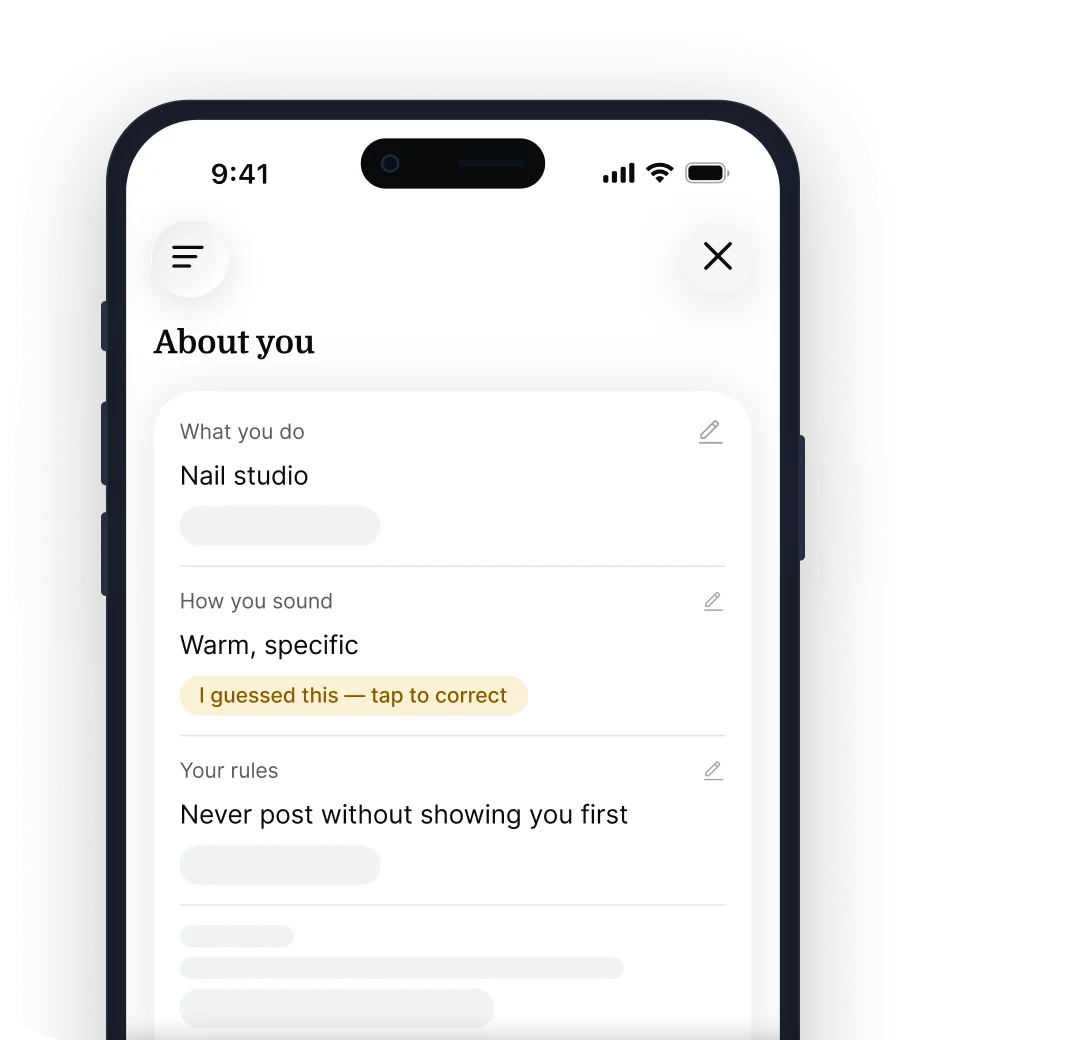
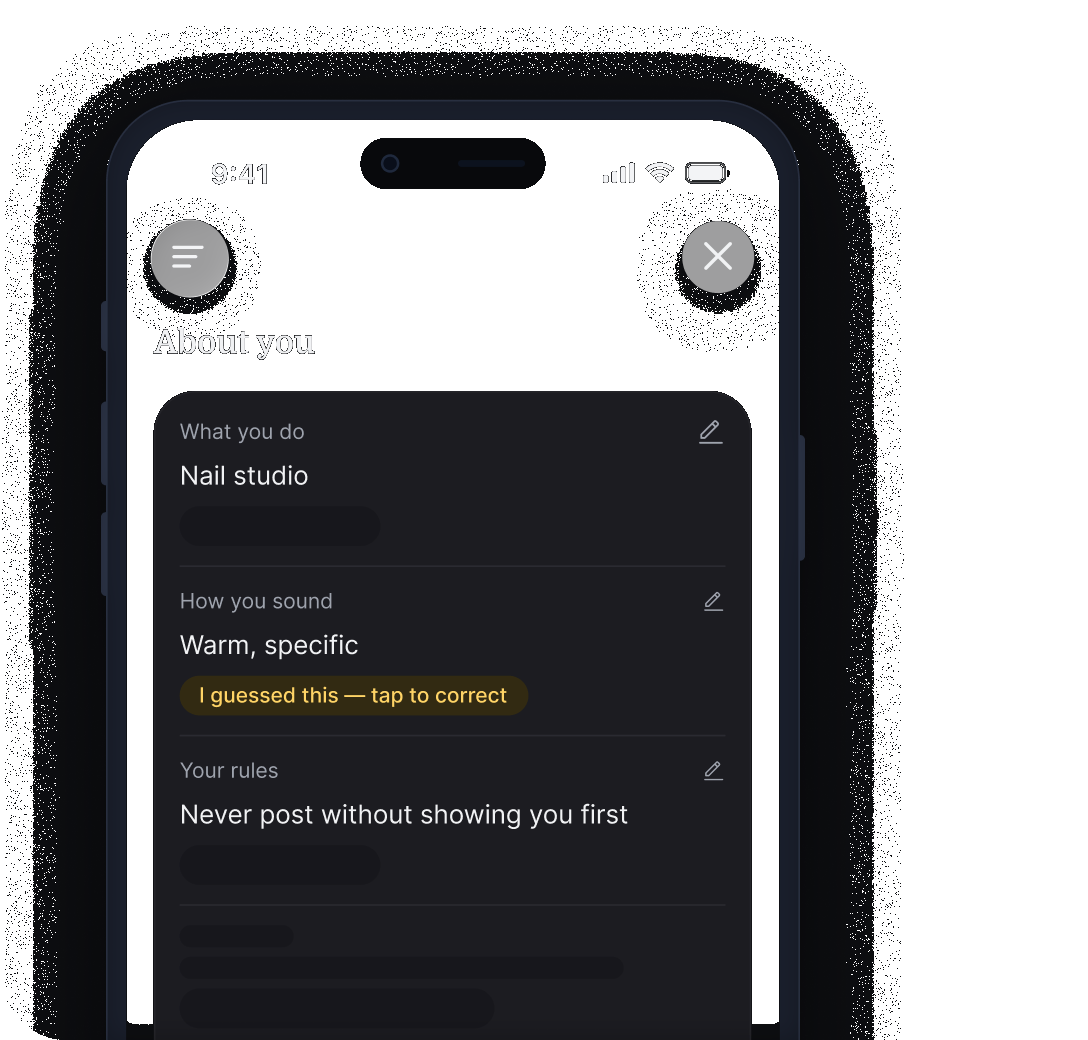
Check what it got about you
Facts and their sources
Everything Empacer knows about your business sits inside, and each fact shows where it came from: your answer, a file you added or a past task.
Correct a guess
When Empacer has to guess things, like your tone of voice, it marks the fact as a guess. Correct it once and the next piece of work uses your version.
Step 3
Ready tasks, not a blank chat
Empacer takes your answers, figures out what your business needs first and drafts it for you.
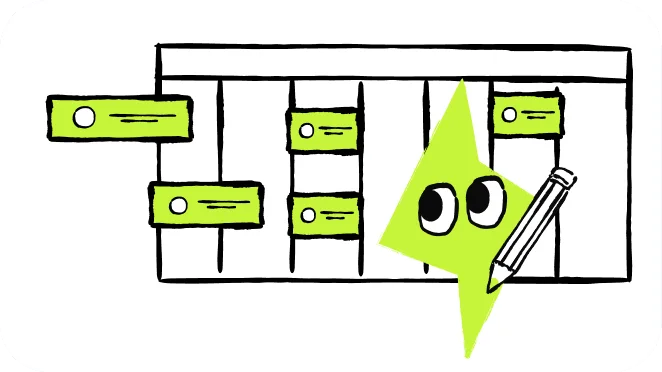
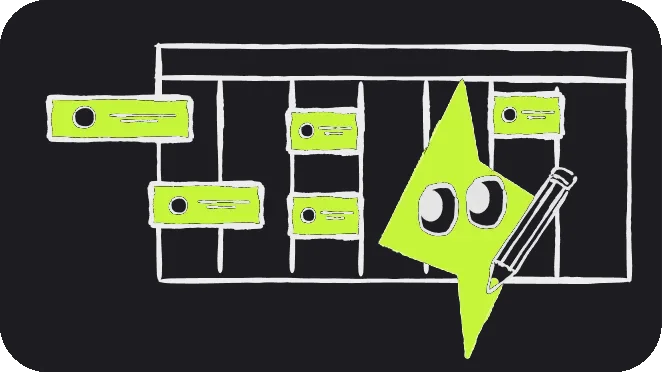
A plan for the first week
A short list of tasks on the home screen, in the order that makes sense for your business.


Social posts, ready for your OK
Engaging content for your social media channels — ready to publish.


The rest on request
Anything not on the list — say it out loud and Empacer takes it from there.
Step 4
Connect a tool when the task needs it
Grant access one task at a time. Empacer requests permissions for tools like Gmail or your calendar only when needed. Decline, and your finished work simply stays inside Empacer.

All trademarks are the property of their owners and do not imply endorsement by Empacer
Step 5
Review your work before you send it
Edit or decline
Tweak a line yourself, tell Empacer what to fix, or discard the draft entirely.
Check the result and approve
Once fixed, check the result card. Without a connected tool, the finished work stays in Empacer.
Send and continue
Your task is complete. The task is delivered right where it needs to be, and securely logged in your history.


Step 6
Understand what happens when something fails
If a task stops, you get a card that says what broke, what's already saved and the one step that gets it moving again.
Get support


Step 7
Find your history and files
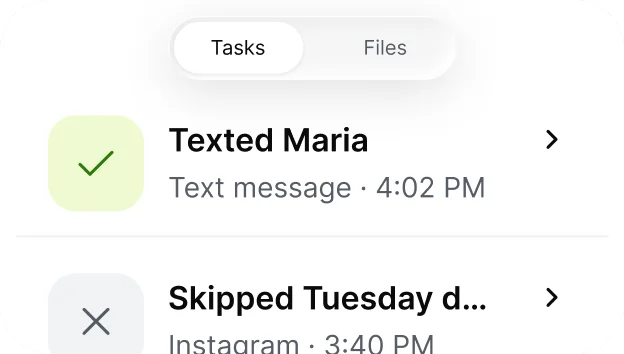
Task history
A complete log of your tasks and their current status.
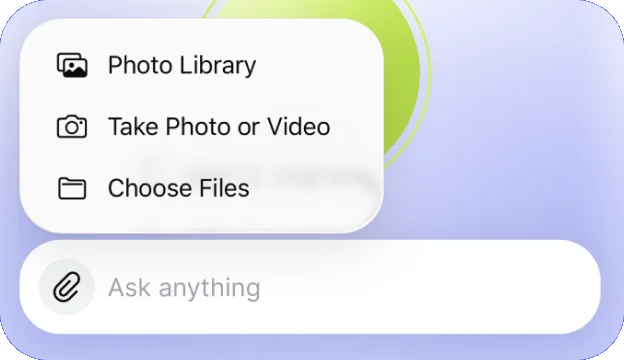
Add your files
Attach photos, invoices, or price lists to give context to your task.
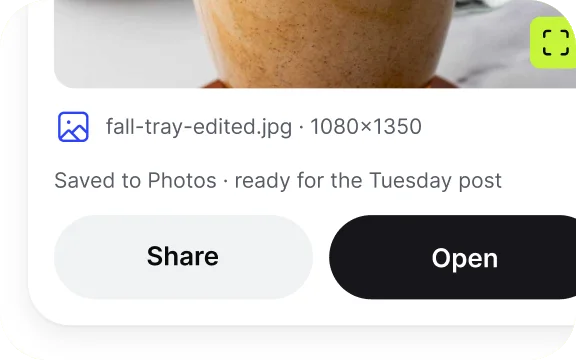
Open or share a finished file
Export your final result to any app on your phone.
FAQ
Can I type instead of talking?
Yes. Type your request, or attach a photo or a file with the plus button.
Do I need to connect my tools first?
No. Empacer starts working right after onboarding: posts, replies and documents are ready without any setup. When a task needs to go out through your calendar, email or another tool, Empacer asks to connect it then. One tap, and only for that tool.
Which tools does Empacer work with?
Instagram, Facebook, Google Calendar, Gmail, Notion and more. Posting straight to Instagram depends on Meta approving access. Until then, you publish the finished post yourself.
Do I see the work before it goes out?
Each result arrives as a card you can edit, decline or approve. Once a message is sent, Empacer can't recall it.
How does Empacer learn about my business?
From a few questions at the start. Everything it knows is in About you, with guesses marked so you can correct them.
What happens if a task fails?
A card explains what went wrong, whether anything was sent and what to do next.
Where do I find past tasks and files?
Your task history is at the top of Home. Open or share finished files from their result card.
What happens to my business information?
Empacer uses the business details and content you provide to understand your requests and prepare the work. Voice input includes audio and transcripts.