
Turn an Idea Into an Interactive Concept
Choose a Useful Starting Point
You've probably heard about vibe coding. It's an AI-assisted way to build websites, apps, and digital tools where you describe what you want in plain language instead of writing each line of code yourself. You guide the direction, review what AI creates, and ask for changes. That lets you build your products, websites, or work tools without hiring a developer or designer.
Vibe coding shortens the distance between an idea and something you can see, try, and respond to. A portfolio can become a story your client can navigate. A landing page can reveal the product's significant features. An app or team tool can turn a repeated task into a working flow someone can complete.
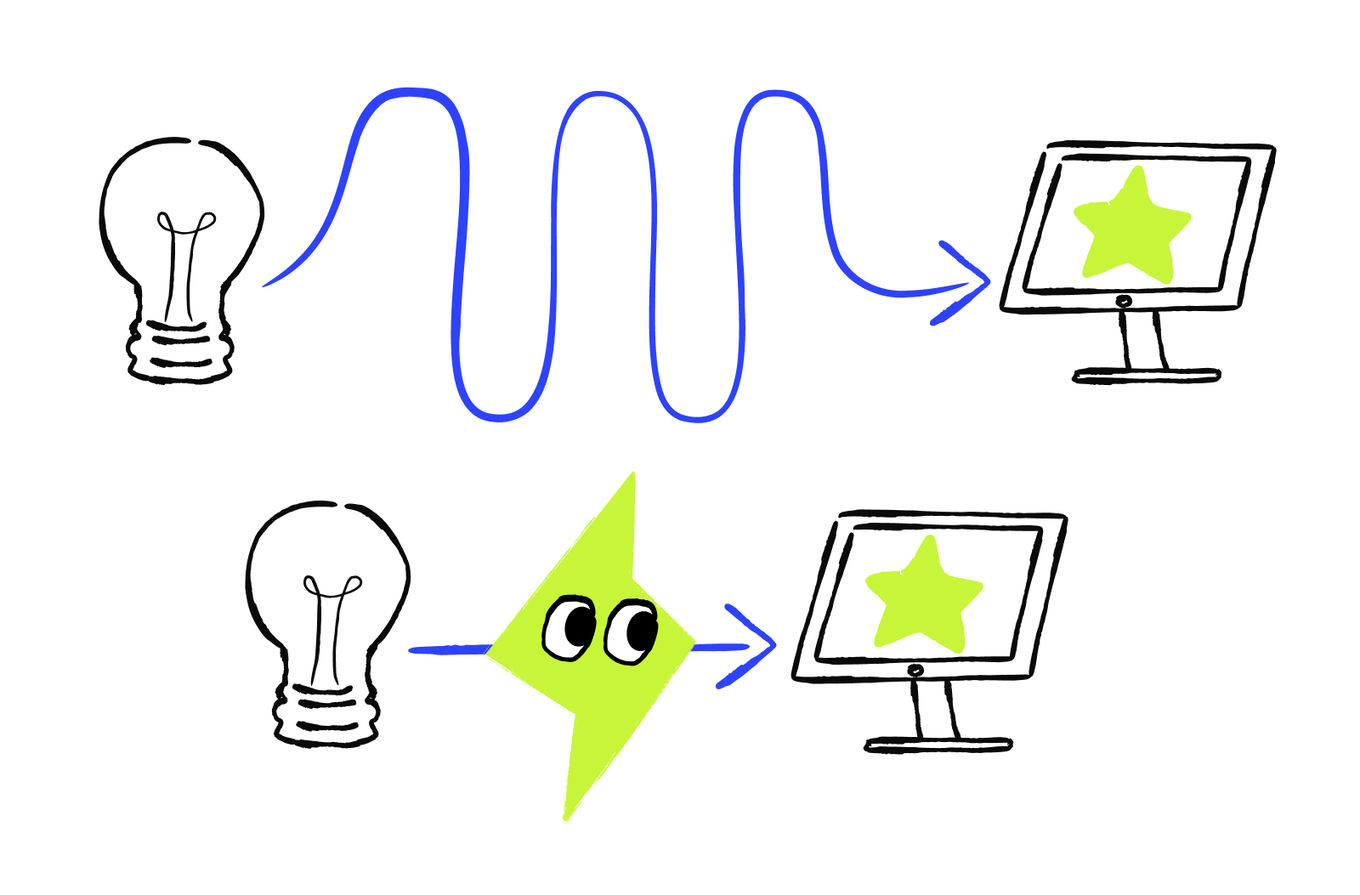
By the end of this course, you'll turn one project idea into something working and testable. You'll define its purpose, map how a user moves through it, make one useful improvement, test its most important user journey, and prepare a realistic plan to launch it and keep improving it.
In this lesson, you'll build a small interactive prototype — an early version with just enough detail to see, try, and evaluate your project's direction. It doesn't need to be complete or polished. You'll give the idea a clear job, turn it into a short brief, use that brief to create the prototype, and inspect how well the result reflects your choices. What you learn from this first version will guide the next stage of the project.
Let's start with a short diagnostic that connects what you want to make, who it's for, and what it should help them do.
What Could You Vibe Code
The diagnostic has given you a place to start. The suggested starting point is one possible direction — you can follow it or try something else. It isn't a project you need to commit to for the rest of the course. Keep what fits.
Next, you'll take a closer look at the four project types and turn your idea into a brief that AI can act on.
Explore Four Project Types
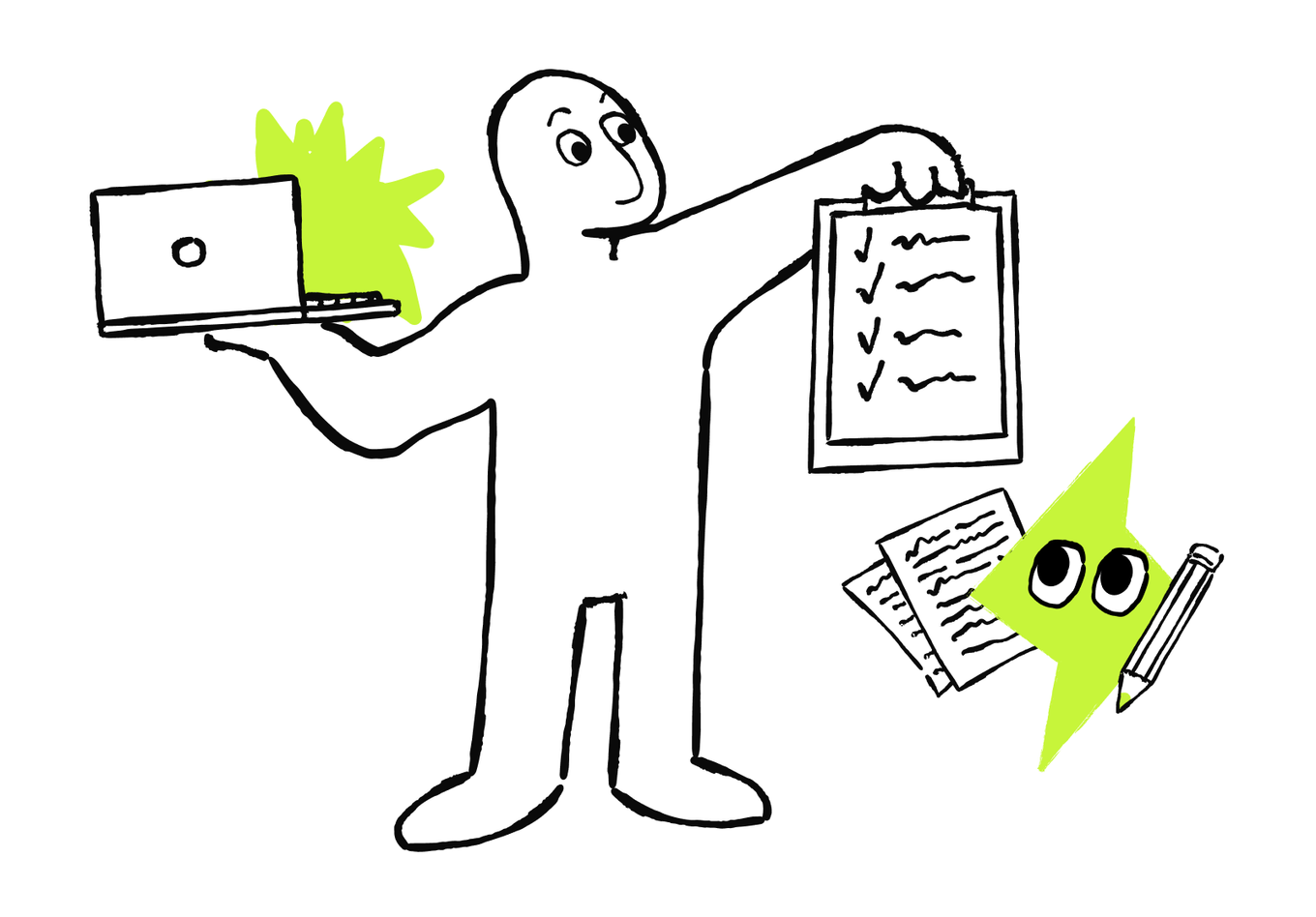
The diagnostic showed that a vibe-coded project can take several forms. Let's look more closely at four common types and how vibe coding can help you turn each one into an asset you can inspect, use, and improve.
- A portfolio helps the right visitor understand your work, inspect relevant proof, and decide whether to contact you.
- A product website, including a landing page, helps a visitor understand an offer, see why it's relevant, and take the intended next step.
- A product app lets a user complete one focused task, such as organizing, finding, or transforming content, and inspect the outcome.
- A team tool supports a repeated task and makes an individual or shared result visible.
Once you've chosen a project type, you don't need to plan the whole future product at once. Start with a small prototype that makes the main direction visible: a few relevant projects in a portfolio, one clear sequence on a product website, or one complete path through an app or team tool. You can use what you learn from that prototype to decide what deserves to be built next.
Match Each Project Type to Its Focus
Match each type with what it should make clear.
A format gives your idea shape, but the visitor’s goal determines which format fits. To help AI build a focused first draft, give it a brief that names the audience, core experience, and boundaries. Let's look at how to provide those inputs without writing a huge specification.
Give AI a Brief It Can Act On
AI may produce an output close to a desired result from a short instruction. When it does, keep what works. A brief helps you make the result more specific, preserve the decisions that matter, and ask for a change without redefining the whole project.
A useful brief for a first test can fit into three connected blocks:
| Core block | What to tell AI | Example |
|---|---|---|
| Audience and purpose | Who you’re building this for, and what they need to do, understand, or decide | "Build a portfolio for early-stage founders who need to judge whether the designer has solved a similar product problem." |
| Core experience | What the audience should do, and what useful result or changed state should follow | "Let visitors open a relevant case study, see the problem, the designer's contribution, and the outcome, then reach one contact option." |
| Scope and focus | What must be included, and what should stay out for now | "Include three case studies and one contact option. Leave out a blog and booking for now." |
The action and the result are connected, but they aren't the same. "Open a case study" is an action. "See enough relevant evidence to decide whether to get in touch" is the useful result. If you can describe the action but not what it should accomplish, AI may build controls that work without creating a useful experience.
Here are two briefs for the same portfolio. Both sound plausible, but they give AI very different levels of direction. Check them out and decide which one works better.
Compare Two Briefs
Which Brief Gives AI Clearer Direction?
Sort the two brief cards by which one gives AI clearer direction.

Which brief is more likely to produce a focused portfolio draft?
The stronger brief isn't simply the longer one. It connects a goal to an experience you can inspect and gives AI a reason to prioritize some elements over others.
Write the same three blocks for your project. A few clear sentences are enough:
- Audience and purpose: I'm building this for... They need...
- Core experience: They should be able to... The useful result or changed state is...
- Scope and focus: It must include... It will leave out...
These three blocks give AI the core of the build. Before you use them, add only the extra direction that would materially change the result. Let's look at the additional details that may be useful.
Complete the Brief and Choose the Output
Your core brief is enough to create a first prototype. You don't need to turn it into a long product specification. Add visual direction, non-negotiables, hard constraints, or an output format only when they affect what AI should build or what you need to do next. Visual direction is optional. If a non-negotiable or hard constraint exists, make sure to include it.
| Additional brief input | When to include it | Example |
|---|---|---|
| Visual direction and references | When the look, hierarchy, interaction pattern, or existing material should meaningfully guide the result | "Use the attached screenshot for its clear hierarchy and generous spacing, but don't copy its brand or wording." |
| Non-negotiables and hard constraints | Whenever a requirement or fixed limit would make the result unusable if ignored | "Keep it mobile-friendly and keyboard-friendly. Don't use real customer data." |
| Requested output format | When you need a particular result for review, sharing, further editing, or publishing | "Return an editable draft I can inspect inside the tool." |
A non-negotiable is something the result must preserve, and a hard constraint is a fixed limit stated by the project context. For example, "No login in this version" is a hard constraint if the project isn't allowed to create accounts. If either one affects the project's core job, include it in the core brief. Otherwise, leave out details that don't change the first test.
Before you start building, decide what you need the AI tool to give you at this stage. The best choice depends on what you want to do next: explore the idea inside the tool, show it to someone, continue editing elsewhere, put it online, or simply capture how it looks. Sharing is a separate decision. A link might open a private draft, a temporary browser preview, or a public site, so always check who can access it.
| What you'll receive | Useful when you need to... | How you'll use it |
|---|---|---|
| Editable draft inside the tool | Inspect the structure, content, and an early interaction quickly | Keep working inside the tool. It isn't automatically visible to anyone else. |
| Browser preview for review | Let someone open a test version without editing it | Share its review link, then check who can open it and how long it remains available. |
| Project files | Continue editing in another tool or hand the project to someone else | Download the available files. The next person will need a tool that can open them. |
| Live website or web app | Let the intended audience use it online | Use a supported publishing option to put it online, then choose who can access it. |
| Screenshot, PDF, or recording | Show how the project looks without sharing a working build | Save or share the file. It shows the appearance, but people can't try the interaction. |
For this lesson, an editable draft inside the tool is enough. If you want feedback, save a browser preview link only when you know who can open it. Don't put the project online for real users yet.
Once AI returns a draft, don't judge it only by how polished it looks. Try the main experience you described in the brief. On a website, read the sections in order and see whether the next step is clear. In an app or team tool, use sample information to complete the core task. This isn't another part of the brief — it's simply a quick way to see whether the result follows the direction you gave AI.
You've now got a compact brief. Now use it to create your first prototype: an editable project draft you can inspect, try, and compare with the direction you set.
Build a Project Draft You Can Inspect
Your brief is ready. Before you take it to an AI tool, let’s practice building. Check the brief you can adjust below. Pick the one closest to your idea, make your choices, and build a prototype you can click through. You’ll see how a brief turns into a working draft and pick up ideas for your own project.
Build Your Project Draft
Now you’re ready to try your own prototype in the AI coding tool.
Combine the core brief, any extra direction that matters, and your requested output. Delete any optional line that doesn't change the build.
Create the output, then compare the prototype with the three core parts of your brief:
- Audience and purpose: Is it clear who it's for and what need it addresses?
- Core experience: Can someone find the main action and reach the useful result you described?
- Scope and focus: Are the essentials present, are your constraints respected, and is anything you deliberately left out still out?
Check whether the visual direction supports the experience — not just whether the result looks polished.
Try the core experience and check if that’s easy to follow. It's normal for some details to feel wrong at this stage. A prototype is for testing an early direction, you don’t have to finalize every detail. If something is off, adjust the relevant part of your brief and try again. You might narrow the audience, clarify the core action, change what the first version includes, or revise the visual direction. Change one meaningful choice at a time so you can see its effect.
The prototype may confirm that the direction works, reveal a specific change worth making, or show that you'd rather work on a different project. All three outcomes are useful.
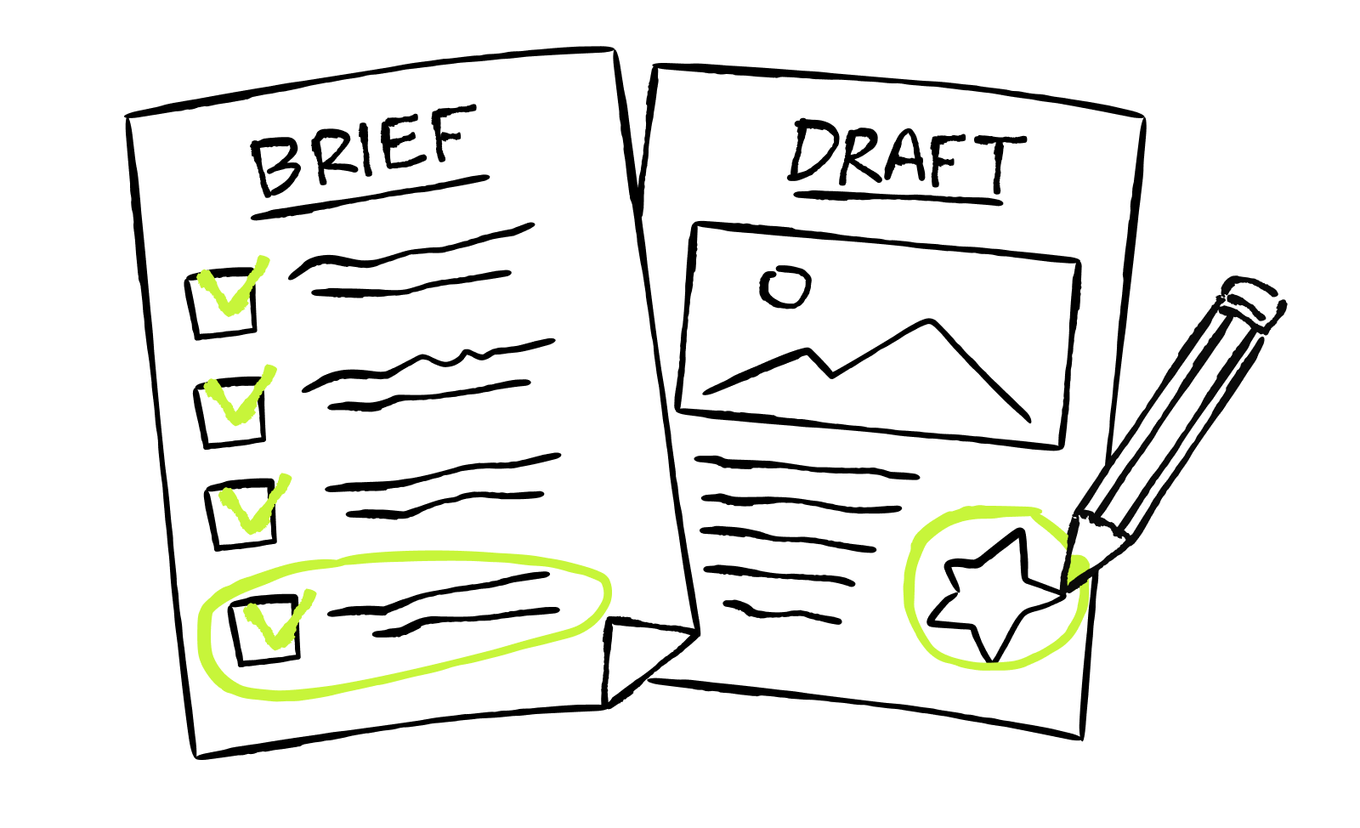
This project draft helps you inspect the direction. Whether the first result is close to what you wanted, or it turned out not as you expected, the brief has an important job: it helps you preserve the useful choices and change what didn’t work out. If the result misses the idea, the brief helps you locate which decision needs attention.
Keep What Fits
You've just created and reviewed your first prototype — that's a milestone. You now have something you can see, try, and respond to instead of an idea that exists only in your head.
If the prototype points in the right direction, use it as the starting point for your project. If it helped you realize that another format, audience, or goal would work better, take that insight and refocus before you build further. Both outcomes move the project forward.
Your brief doesn't have to be perfect or permanent. Keep it as a working guide and update it as the project becomes clearer. A few deliberate changes along the way will help you shape a stronger result without starting over each time.
To turn a promising prototype into a clear, useful project, you'll need to focus on the user flow: how someone enters the experience, what they do next, where they might hesitate, and how they reach a useful result. This matters in a portfolio, app, or team tool, and it matters just as much on a one-page website, where the order of sections creates the journey. In the next lesson, you'll map that flow and use it to make the experience clearer and smoother.
How was the lesson?
Your answer goes to our content team
Next · Lesson 2