
Test, Publish, and Improve Your Project
Turn Your Plan Into Final Checks
You've taken your project from an idea to a working experience. It has a purpose, a main flow, and features that help the user reach a better result. You're now close to sharing it with other people. You’ll prepare your project for a successful release and make it available to its intended audience.
Before the release, it’s important to take one final look at how the complete project works. This is your chance to catch a broken action, an unclear response, or a project rule that the build doesn't follow yet.
By the end of this lesson, you'll have a completed quality record, a saved version you can return to, and either a verified released project or a clear blocker and next step to resolve before sharing.
Check the Complete Experience
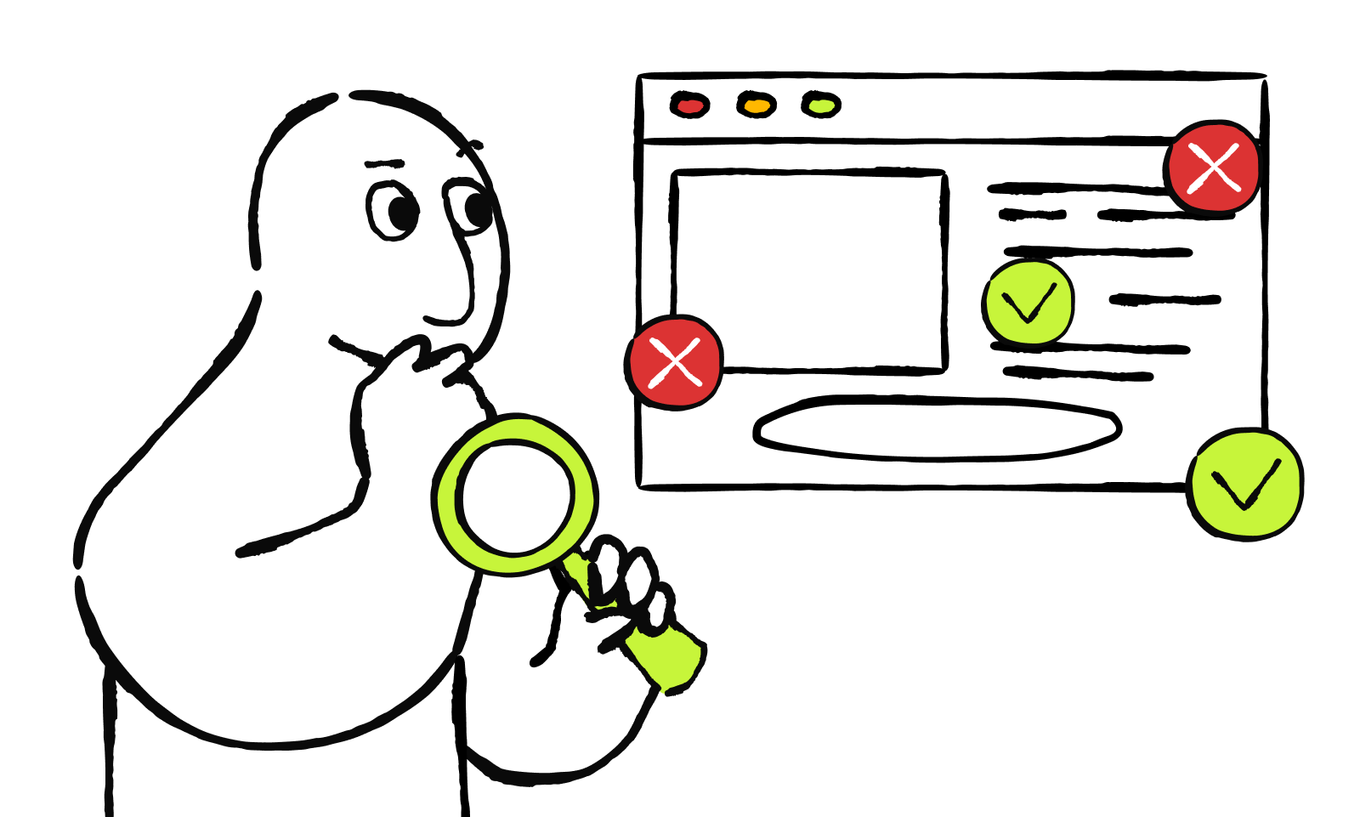
You've already done smaller quality assurance, or QA, passes throughout the course. You checked the main route after building it, then checked the new feature after adding it. Those focused checks helped each part work on its own. Now it's time to see how the complete experience works from the first action to the useful result.
Every part you've created needs to support the others. Your brief describes the audience, purpose, and useful result. Your user flow shows the route to that result. Your feature plan explains the additional behavior you built. The build record from the previous lesson reminds you what changed and which routes were already working.
Let's reconnect each note with the part of QA it guides.
Match Each Project Note to the Check It Guides
Match each note with the part of the final check it helps you define.
These notes help you test behavior you can observe instead of relying on a general feeling that the project is finished.
Start the final QA with one complete run through the main route. Enter the project where the intended visitor or user will enter, complete each planned action in order, confirm the project's responses, and finish with the useful result and a clear next step.
The route and final checks will vary by project type. Use the examples below to see what deserves verification in each one.
Main Route and Final Checks
Test the Main Route And Its Limits
The main route shows that the project can work under normal conditions. A final QA pass should also test the realistic situations that might challenge it.
These situations are called corner cases. They're less common but still plausible, such as blank or unusually long input, a repeated action, an unsupported file, a refresh at an important moment, or a temporary connection problem. Choose only the cases that fit your project.
Also verify the hard constraints you set in the brief or feature plan. For example, the project may need to accept only certain file types, avoid saving information, stay within a stated input limit, hide a team area from visitors, or avoid sending a real notification during a demonstration. A constraint works only when the project follows it in practice.
Use these areas to shape the complete checklist:
| Check area | What to include |
|---|---|
| Main route and feature | Complete the full route, use the feature you added, and confirm the intended result and next step. |
| Content and actions | Read the essential text and use every link, button, field, form, copy, download, notification, or handoff action in the route. |
| Corner cases and constraints | Try two or three relevant corner cases and verify every hard constraint that affects the main result, information, access, or external action. |
| Devices, input methods, themes, and accessibility | Complete the main route on the relevant devices and screen or window sizes. Then use the three accessibility passes below to check readability, navigation, controls, and project responses. |
| Information and external setup | Confirm that the project shows the intended information and uses the planned source or service. Check that private records and unfinished test content aren't exposed to visitors. Store passwords and secret or API keys only through the protected secrets controls recommended by the tool. |
Accessibility testing checks whether people can understand and complete the main route in different ways. Run the route in three short passes:
- Read: Enlarge the text or zoom in. Check that essential content remains visible and readable, with enough contrast in every supported theme.
- Navigate and act: Use a keyboard for a web or desktop experience where keyboard navigation applies. On mobile, check that important controls are easy to tap. When available, use the device's built-in screen reader — a tool that reads content and controls aloud — to check the most important actions.
- Understand the response: Check that instructions, field labels, error messages, progress states, and success messages make the next step clear without relying only on color, position, or an icon.
Use fictional or non-sensitive information during the main-route, corner-case, and constraint checks. Depending on the setup, submitting a form, uploading a file, sending a notification, assigning work, or calling an external API can store a record, contact a recipient, trigger another service, or count toward a service limit or paid usage. Use only the test destinations, accounts, workspaces, and files that fit your project and that you own or have permission to use.
When a connected service offers a test mode — a separate setup designed to keep test activity away from real users or records — follow its current testing guide. Some services call this a sandbox. Test environments vary: some cover only certain actions, and some settings can still affect the live account. A sandbox confirms only the behavior it simulates; it may not prove real delivery, follow-up responses from another service, or every live setting.
To make the QA process easier and organized, you can use a checklist. Write the QA checklist yourself or ask AI to organize it from the decisions you've already made. Each check compares what should happen with what you observe, so organize the findings in these categories:
- Check: The part of the experience you're verifying.
- Action: The exact step you'll take to test it.
- Expected: What the step should do.
- Actual: What happened when you ran the check.
- Decision: Choose Pass, Fix now, or Fix later.
AI will organize the output in a simple table. Check the example below. It shows part of a QA checklist for a product website that has a Book a demo action and a short inquiry form:
| Check | Action | Expected | Actual | Decision |
|---|---|---|---|---|
| Main call to action | Select Book a demo | The intended scheduling page opens | [Complete after testing] | Pass / Fix now/ Fix later |
| Empty input | Submit the main form with the required field empty | A clear message explains what to add | [Complete after testing] | Pass / Fix now/ Fix later |
| Project constraint | Try an input beyond the stated limit | The project applies the planned limit and explains it | [Complete after testing] | Pass / Fix now/ Fix later |
Review the table before testing and replace general wording with the real buttons, links, fields, sections, or screens in your project. The Actual column records exactly what appeared when you performed the action. The Decision is your decision regarding the next step:
- Pass: Actual behaviour matches the expected one and follows the project's constraints.
- Fix now: The issue blocks the main route, useful result, a hard constraint, intended access, or a safe release.
- Fix later: The project can still be released safely and usefully, but the improvement belongs in a later iteration. You can add a short note explaining why it can wait.
Any finding marked Fix now is a critical issue for this release: it stops the project from doing the job you planned, breaks one of its hard rules, or creates a serious risk. Let’s see how to resolve those findings before you prepare the project for sharing.
Fix Every Critical Issue Before Release
Your completed checklist now separates checks that passed from critical issues for this release, and improvements that can wait. Focus first on every critical issue that you need to fix now.
Find the Issues That Block a Safe Release
A critical issue stops the project from doing the job you planned, breaks one of its hard rules, or creates a serious risk. Keep the project private and unreleased while any of these findings remains:
- The main route can't begin or reach its intended result
- The result is missing, incorrect, or misleading
- Useful input or saved work disappears unexpectedly
- A likely problem leaves the user without a clear next step
- A link, form, file, notification, or handoff reaches the wrong destination
- Visible information or access breaks a hard constraint
- A realistic corner case produces an unsafe or confusing result
- Passwords, secret keys, private information, or inappropriate test records appear in the project
Once every critical item passes, the project has earned the next step: release preparation. You can keep extra content ideas and visual refinements in a later-improvement note, but they shouldn't replace a required fix.
Fix One Clear Problem at a Time
If QA reveals a critical issue, use AI to correct it before you continue toward publication. Each failed row already contains the evidence AI needs: the action you performed, the result you expected, and the result you saw. Work from one failed row at a time so the correction stays focused and the working parts remain stable.
Repeat the failed check and any directly affected steps. Then complete the main route from start to finish once more. Update the same QA table so it describes the current version rather than the earlier failure.
Continue until every critical row passes.
Save the QA-Passed Baseline
A baseline is the latest version that passed every critical check. It gives you a known working state to return to if release preparation or a later change introduces a problem.
Save the baseline with a clear label using the version, checkpoint, duplicate, export, or history option your tool supports. Use the same flow as in the previous lesson.
You now have a tested state to protect. Next, you'll choose how the intended audience should reach the project and prepare that exact version for release.
Choose Access and Publish With a Way Back
Publishing makes a selected version available to other people. A web experience usually receives a live web address. An app can be shared as an artifact or hosted preview, prepared for installation on a device, or submitted to an app store.
If You Built a Web Experience
A portfolio, product website, browser-based product app, or browser-based team tool can be released through hosting — a service that puts your project online and keeps it available when a visitor opens its address.
Some AI coding tools include hosting. Others connect to a separate hosting service or prepare project files that you can publish through one. The release action may be called Publish or Deploy.
First, decide which version you need:
- A hosted preview — a version placed online at a link for testing or limited sharing
- A production version — the live version intended for your audience
- An artifact — a shareable version that opens inside the tool's own platform rather than on an independent website
An artifact may be enough for a simple demonstration or interactive experience. A hosted website is usually a better fit when the project needs its own web address or features that the artifact format doesn't support. Your tool can explain which options are available for the project you've built.
Tell the AI coding tool what result you want. Use the prompt below to ask it for the sharing guidance
Then follow the publishing flow shown by the assistant and hosting service. Review each confirmation before you approve it, especially if the flow changes the project's visibility or creates a public version.
Understand the Address You'll Receive
Every hosted website needs a web address. The main identifying part of that address is its domain.
Some coding tools publish projects on their own domains. Others use the domain of a connected hosting service. In either case, you may receive an address such as project-name.provider.app.
An address provided by the tool or hosting service is usually enough for a first release. Depending on the tool and your plan, you may also be able to connect a custom domain — an address you choose, such as yourname.com or app.yourcompany.com.
Ask your assistant which domain options the current setup supports. Custom domains usually come with an extra cost because you'll need to register the name and renew it regularly. Before you choose a name, check that it's available and not registered yet.
A custom domain almost always requires a separate connection. Even if your tool supports it, a single Publish command can't guarantee that the new address is ready. If you already own a domain, tell it to your AI coding tool and follow its publishing instructions.

Choose Who Can Open the Project
The web address tells people where the project lives. The access setting controls who can open it.
Some hosting services let you limit access to a published website, while others make it public by default. The exact options depend on the tool, hosting service, and plan, but they may include:
- Public access: Anyone with the web address can open the site. The address can be forwarded, and the site may also be discovered through search or other links.
- Invited access: Only approved people, workspace members, or invited guests can open the site after signing in.
- Protected sharing: Some hosting services offer a special share link or password. Anyone who receives it may be able to pass it on, so check whether the service verifies each visitor or only the link or password.
Confirm that the selected access setting applies to the exact live address you plan to share. If the available options don't provide the access your project requires, keep it unpublished or share a separate demonstration that contains no sensitive information.
Once the address, access, and release format are clear, publish the QA-passed version you saved.
If You Built an App
If the app runs in a browser, you can release it through the web-experience route above. If you want to demonstrate it as an app, install it on a device, or submit it to a store, choose the route below that matches what you want the audience to do.
Share it as an artifact or hosted preview. If your tool creates a shareable artifact or preview link, you can use it to demonstrate the app, collect feedback, or let a small group try the main flow. Check whether people need an account, who can open the link, and whether you can restrict or stop access. This route lets people experience the current version, but it doesn't turn the project into an installed app or a public store release.
Prepare a version for a device. If you want the app to run directly on a phone, tablet, or computer, ask your AI coding tool whether it can prepare a version for the intended platform. Confirm what the tool can actually create or export, then follow the current official requirements for that platform. Some packaging, account, security, or distribution steps may happen outside the coding tool. Test the resulting version on a device you control before sharing it.
Submit it to an app store. If you want a native app to be publicly discoverable and installable through the standard store route, you'll need to complete a separate submission process for the relevant store.
Once you've chosen a route, tell your AI coding tool exactly how you want to share the app. Ask what it can prepare, which steps you'll need to complete elsewhere, and which current platform guidance you should follow.
Prepare the Version You Want to Share
Before releasing the project, confirm that:
- The project contains the version that passed QA
- Unfinished placeholders and test records that the audience shouldn't see have been removed
- The project name, icon, description, and other visible sharing details are ready for the selected route
- The live site, artifact, preview, or app uses the intended access settings
- Private information is visible only to the intended audience
- Passwords and private credentials use the protected server-side setup recommended by the tool and aren't visible to the audience
- The production connections and destinations used by the released project are configured and checked
- Current hosting, storage, AI, store, or external-service limits and costs fit the planned use
- You understand how to restrict or stop new access through the selected route
- You know how the audience will receive a corrected or updated version if one is needed
- You know how to return to the QA-passed baseline
Plan the Release And Your Way Back
Restore or Revert usually returns the editable project to an earlier state. A published website, shared artifact, submitted store version, or installed build may remain unchanged until you update or replace it through the same route.
Returning the project files to an earlier version may also leave stored records, sent messages, or actions in an external service unchanged. Check the current tool guidance before you rely on a restore action.
You now know what you plan to release, who should receive it, how it will be hosted or distributed, and how you'll return to the tested baseline. Put the release steps in order before you act.
Put a Controlled Release in Order
Arrange the steps so the checked version reaches its intended audience with the right access and a clear way back.
- Repeat any check affected by release preparation and save the final release version
- Confirm the release content, audience, access, external setup, and way back
- Complete final QA and save the passing baseline
- Verify the released version
- Publish, deploy, or distribute that checked version

If every preparation check passes and any deeper review the project needs is complete, follow the current guidance for the route you chose. If a critical issue remains, keep the project private, record the blocker, and repeat QA after fixing it.
Your chosen route will produce a live web address, a shareable artifact, a device version, or a store-submission next step. Once the result is available to the intended audience, check what they actually receive.
Verify the Released Version
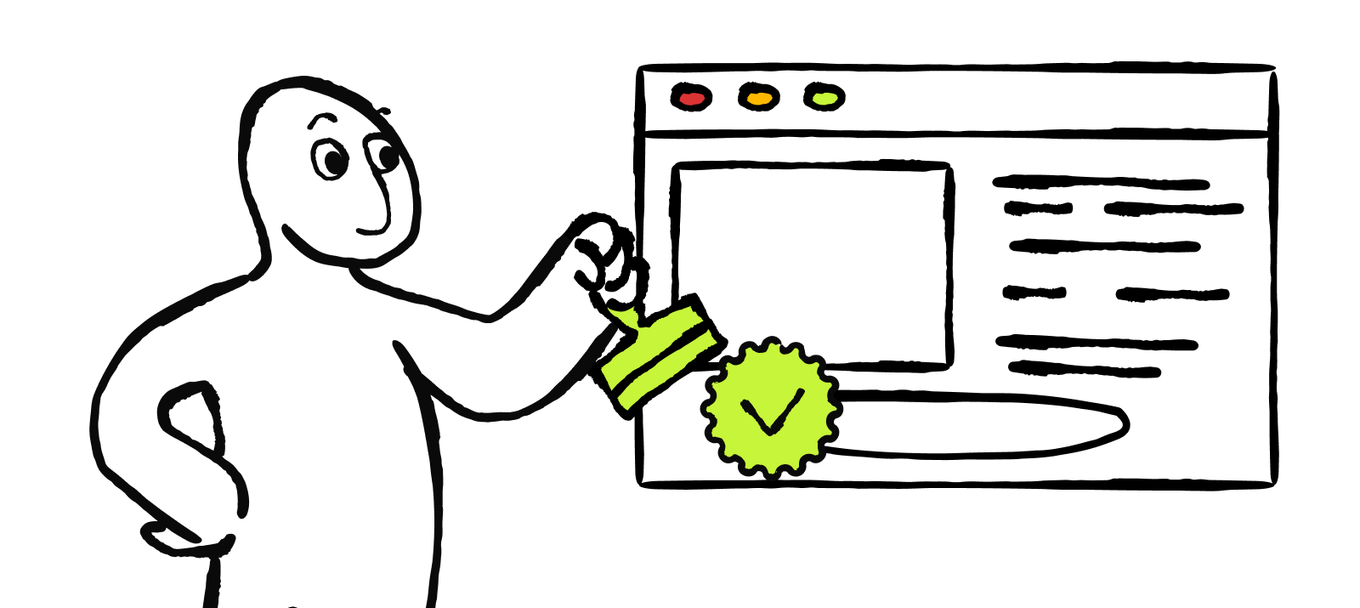
Preview QA tells you how the project behaves inside the building environment. A separate release check confirms the version, access, connections, and behavior people will encounter within an actual experience.
Open the released project in a setup that matches the audience you're testing:
- For a public website or link-based artifact, open the exact link in a signed-out browser session or private window. This helps you see the experience as a visitor without your builder access or saved account state affecting it.
- For a restricted website or artifact, use an account with the same access as the intended audience.
- For a device version of an app, install and open the exact version you plan to share on a device or computer you control.
- For a store route, verify the exact beta or released version once it becomes available through the chosen store.
Test Expected Behavior, Corner Cases, and Constraints
Begin with the complete main route, then deliberately try the situations that could challenge it. Use safe test information and repeat the critical checks:
- Confirm that the live address, artifact link, installed version, or store version opens the project you approved.
- Check that the intended audience can enter, install, or accept the invitation as planned, while other visitors receive the expected access response.
- Complete the main route from its real entry point to the useful result.
- Use the feature you added and confirm its visible result.
- Check the links, calls to action, forms, downloads, notifications, handoffs, or external connection used in that route.
- Try two or three relevant corner cases and confirm that every hard constraint still holds.
- Repeat one likely problem and confirm that the project offers a clear next step.
- Follow the route on the intended device, screen size, and input method. For a web release, include a small screen and keyboard check. If the project has a dark theme, check that text, controls, messages, and highlights remain clear.
Use the scenario below to check whether a released project is ready for its intended audience.
A team tool is meant for a small invited group. Its preview passed QA, including a handoff with fictional test data, but the live link opens while you're signed out. Which actions should the project owner take before inviting the team?
If the shared or released version blocks the main route, breaks a constraint, shows unintended information, or reaches the wrong audience, then restrict or remove the link, unpublish the web version, pause the store release, or stop new distribution when the selected route allows it.
Fix the editable project, check it again, create the updated version, and repeat the relevant sharing checks. Remember that stopping new distribution doesn't remove files or apps that have already been downloaded or installed.
Learn From a Small Test Group
Once the released route works, ask two or three people who resemble the intended audience to try it. Give each participant one target task and the result they should reach, but let them choose the steps. This shows whether the route makes sense without your explanation.
A portfolio visitor might find relevant work and decide how to make contact. A product website visitor might understand the offer and choose the intended next step. A product app user might move from input to result, while a team tool user might update and hand off one work item.
Watch the first action, moments of hesitation, backtracking, questions, and whether the participant reaches the result. Then ask:
- What did you expect to happen?
- Where did you hesitate or go back?
- Did you reach the result you needed?
- What did you expect to do next?
After each session, write a short feedback note:
Participant role: [who tested the project]
Task: [the result they tried to reach]
Observed route: [the actions they took]
Hesitation or problem: [where they slowed down, went back, or got stuck]
Result reached: [yes, partly, or no — with a short explanation]
Participant's feedback: [their own words or a concise summary]
These notes can reveal early patterns across the sessions: where the route worked, where participants interpreted it differently than you expected, which friction appeared more than once, and which issue sits closest to the useful result. AI can help you organize that evidence without inventing additional feedback.
Review the suggestion against the original notes. Make an improvement only when the evidence supports it. If the strongest next step is to preserve the current version or gather more evidence, record that decision instead of changing the project unnecessarily.
If you can't recruit testers yet, use the completed QA and release-check evidence to choose the next improvement, then return to audience testing when suitable participants are available.
Whether the sessions confirmed the route or revealed the next correction, you now have a repeatable way to move the project forward.
Course Completed!
You've taken one project from an initial idea to a clear brief, a mapped user flow, a working build, a useful feature, a checked project, and a release plan. You've also learned what to do when AI's first result misses the mark.
That's a substantial piece of work. You can now plan and build a portfolio, product website, product app, or team tool with a process that keeps the audience and useful result in view.
Reuse the same rhythm for your next project:
Brief → Flow → Build → Improve → Test → Publish → Observe → Refine
Start with a focused result, make one meaningful change at a time, and keep the last working version within reach. Your projects can grow from there without losing the route that already works.

Course completed
That’s a wrap on Vibe Coding Essentials: From Idea to a Working Project!
How was the course?
Your answer goes to our content team
Recommended next
Want to help people find your small business without buying ads? This organic social media course gives you a clear starting point. Use AI to make your profile clear and inviting. Find ideas that fit your business, then create and polish posts. Publish them with a plan you can keep.

Business Automation
AI Agents for Small Business: A Practical Agentic AI Course
Build AI agents that take recurring work off your plate while keeping important decisions in your hands. In this practical agentic AI course, you'll create AI agents for small business workflows. No coding experience required.
Operations
Manage Projects With AI
Turn scattered client requests, messages, dates, and estimates into a project system you can check and keep current. This practical AI project management course shows you how to build a feasible week across projects, and adapt when circumstances change.