
Plan and Track the Project
Start Building Your Project Tracker
A project can be clear when you accept it and still become difficult to run. Tasks end up in one place, client decisions in another, and the latest dates stay in someone's inbox or memory. To keep everything under control, you need a clear system with a single source of truth.
In the previous lesson, you confirmed what the project includes and whether the numbers work. Now you'll turn that starting point into a practical plan that stays current as the work moves.
By the end of this lesson, you will have one project tracker with the confirmed project context, active tasks, owners, task statuses, dependencies, sources, and a simple rule for keeping everything up to date.
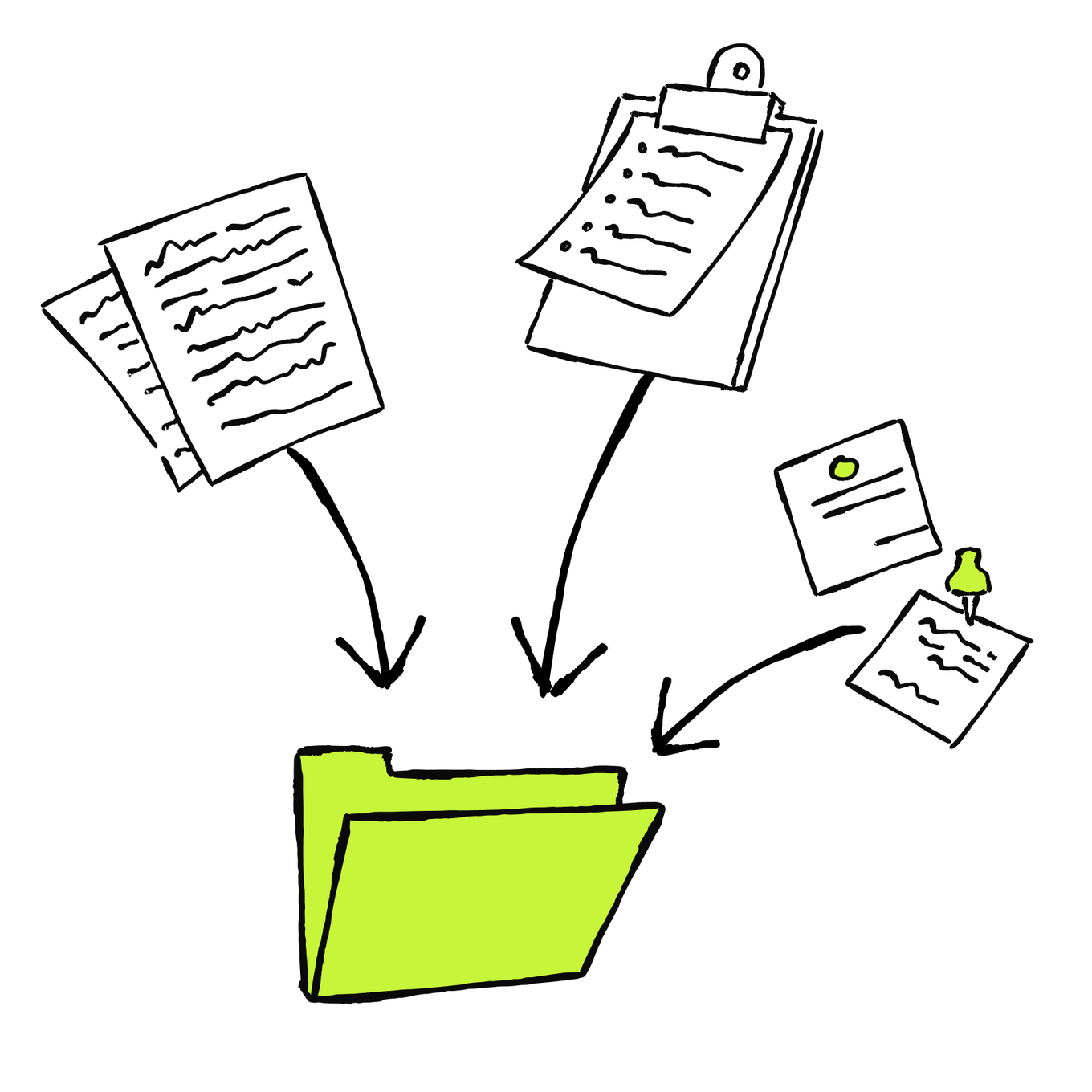
Choose One Place for the Current Plan
The current project plan needs one maintained home. It may be the task tracker your business already uses or a simple cloud spreadsheet if you don't have a system yet.
Project information can live in several places: client emails and messages, meeting notes, shared files, and calendar events. That is normal — each source captures a different part of the work. The current project plan needs one maintained home: the one where you can check all the relevant and up-to-date project info.
Use the route that matches how your business already works:
- If you already use a task tracker: keep the project there. Reuse its existing fields where possible so the team does not need to learn a second system. Don't create a separate AI tracker beside the system you or your team already use. AI should help prepare and update the current plan, not give you another place to maintain.
- If you don't have a maintained system: create one tracker for yourself. The easiest way to start is a cloud spreadsheet for the project that you can share with your team if needed.
Choose the Project Home
Choose where the current project plan should live.

Everyone on a small team updates tasks, owners, and due dates in the same shared workspace. The new project's client decisions and price proposal are still in emails and notes.
Use a Minimal Starter Template When You Need One
When you need to create a tracker from scratch, carry forward the confirmed project scope and information from Lesson 1:
- Desired result
- The definition of done
- Brief project overview
Below that, use this data for each active task or necessary next step:
- Task and expected result
- Owner
- Status
- Due date or trigger
- Dependence on other tasks
- Source
- Last updated
You don’t need to build and fill a new tracker by hand. Give AI the confirmed project details and the relevant records, and it can prepare the starting structure and populate the fields it can support. Review the proposed tracker before you begin using it.
This prompt is only for the route where no maintained tracker exists. If you already use a tracker, keep its current structure.
Create and Fill a New Project Tracker
The result is a reusable template with your current project data:
| Task and expected result | Owner | Status | Due date or trigger | Depends on or waiting for | Source | Last updated |
|---|---|---|---|---|---|---|
| [Clear action and result] | [Person or Unassigned] | [Task state] | [Date or event] | [Dependency] | [Record or link] | [Date] |
That is enough to start. Add a field only when it helps someone decide, act, or check the work. A larger table is not automatically a better project system.
Next, you'll learn how to add clear tasks and use a separate prompt to align an existing tracker with the latest project sources.
Turn the Confirmed Project Into Actionable Tasks
Once the tracker exists, decide which tasks belong in it. A useful tracker shows the work that moves the project forward, not every thought or conversation about it.
Start with the agreed result and the main dependencies. Identify the actions that can begin now, unlock later work, or need a follow-up. Keep later work at a higher level until it gets closer or you have enough information to plan it properly.
Only after you know what a useful task should contain, use AI to prepare or improve the task records.
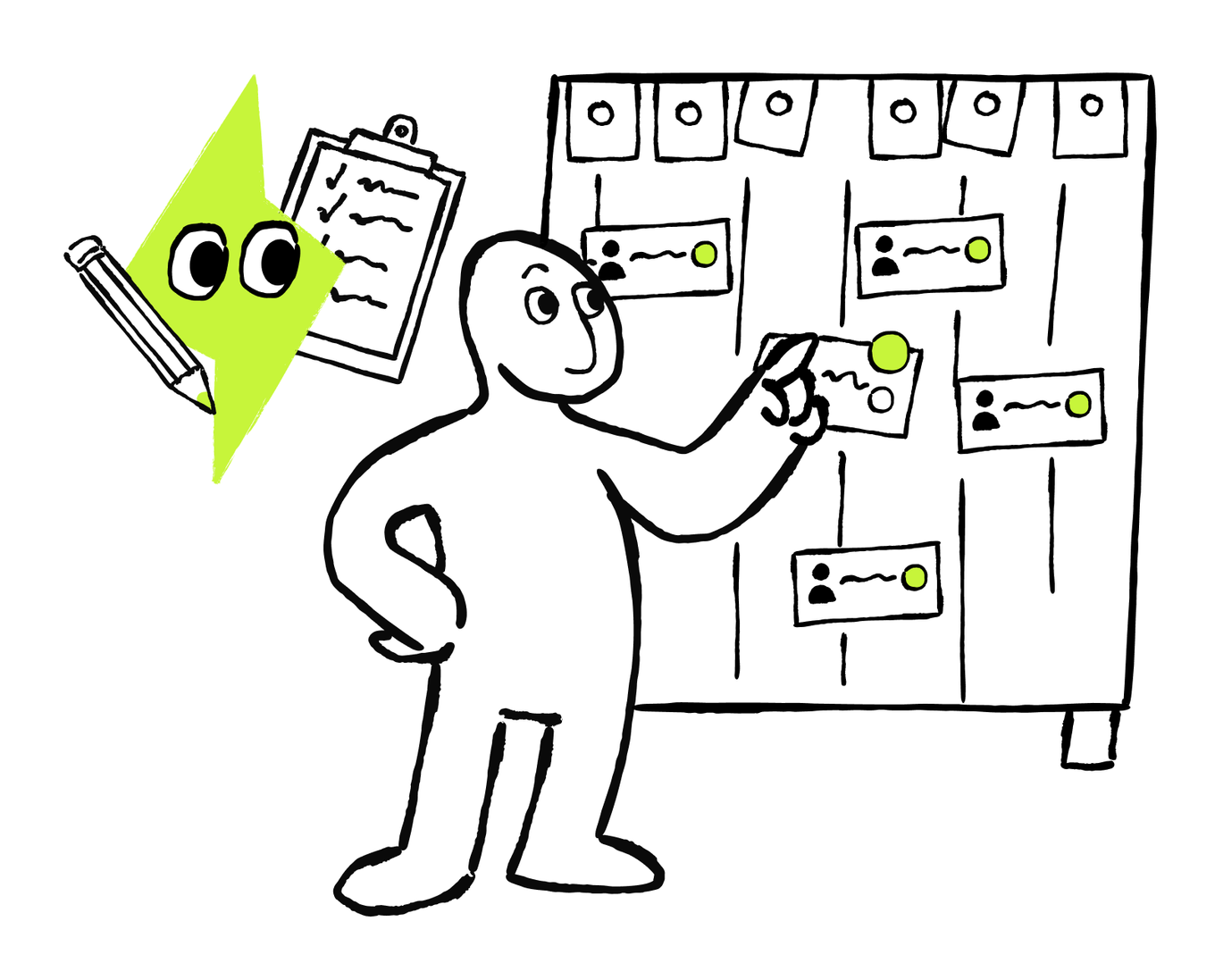
Write Tasks Your or Your Team Can Act On
A useful task record answers five questions:
- What happens next? Start with a clear action.
- What result should it produce? Make completion easy to check.
- Who owns the next action? Is this you or anyone from your team or contractors? Assign the task to a person or use Unknown until a person confirms it.
- When does it matter? Add a supported due date or a real trigger, such as an approval or delivery.
- What must happen first? Name the dependency or waiting condition.
For example, Prepare the proposal is vague. Send the revised proposal for client approval names both the action and the result.
Keep the plan useful rather than exhaustive. Add the active tasks and the later steps needed to understand the main sequence. You can add more detail when those steps get closer or new information makes it necessary.
Use a Clear Task Status
Use the status labels already available in your tracker when they express the same ideas. If you need a simple set, use:
- Ready: The task can start now.
- In progress: Someone has started the work.
- Waiting: The task is waiting for a known response or event. Record the next check.
- Blocked: The task cannot continue and someone needs to resolve the problem.
- Done: The expected result is complete and has been checked.
A requested date, an estimated delivery, or an unconfirmed owner is not a status. Keep that information in the relevant date, owner, dependency, or source field.
Match the Task to Its Current State
Match each situation to the status it supports.
Turn New Information Into Reviewed Updates
Now compare the current tracker with the latest project records that may contain newer project information, such as client messages, meeting notes, calendar events, etc. If AI has approved access to both, it can retrieve relevant client messages, notes, calendar events, files, and tracker records without you copying each one. If the tool also supports write access, it may be able to apply approved updates directly.
Before anything changes, check whether the draft includes every necessary task, misses a dependency, creates a duplicate, or turns an estimated date into a commitment. A connection can reduce copying, but it doesn’t replace your review.
Ask AI to separate its suggestions into:
- Create: a supported task or project detail is missing from the tracker
- Update: an existing record no longer matches the latest checked source
- Needs confirmation: the records conflict or do not support a safe update
Keep the Current Project Tracker Aligned
Check the Project and Keep the Tracker Current
Know When to Check the Tracker
Once work begins, new information will arrive outside the tracker. A client may answer a question in a message. A task may finish earlier than expected. A delivery may move. The tracker stays useful only when those events are reflected in the current tasks.
Common ad hoc events include:
- A client or internal decision is confirmed
- Someone starts, finishes, or can no longer complete a task
- A delivery, approval, meeting, or other dependency changes
- A due date or agreed trigger passes without the expected result
- A new constraint, issue, or change request appears
These events require a quick check of the tracker to make sure everything is still aligned.
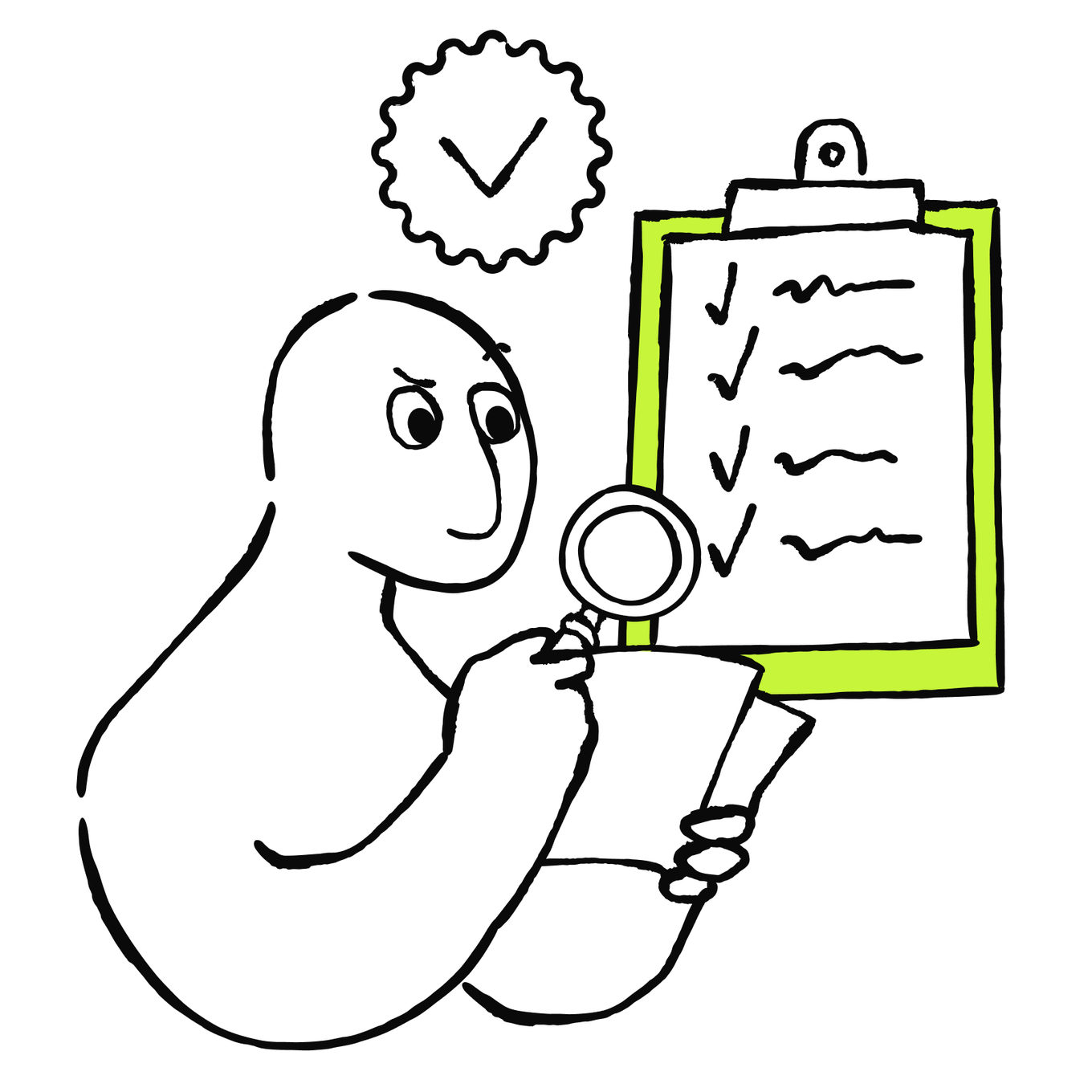
Run a Short Project Health Check
Run this check after a meaningful event and at a regular rhythm that fits the project:
- Does every active task have the right current status?
- Does every Waiting or Blocked task say what it needs, who follows up, and when it will be checked?
- Has any due date or trigger passed without the expected result?
- Did a completed task, decision, or delivery make another task ready or outdated?
- Is the latest meaningful project event reflected with a source and update date?
Then take the smallest action the evidence supports:
- If the tracker is current, leave it as is.
- If a fact changed, update only the affected fields or tasks.
- If information is missing or conflicting, mark it Needs confirmation and name the next check.
- If the change could affect scope, price, resources, or a client commitment, keep it visible for a decision.
You can make the approved changes yourself. If AI has access to the project sources, ask it to compare only the new information with the current project tracker and prepare an update preview. If it also has write access, tell it exactly which approved changes to apply, then reopen the tracker and check the result.
Automate Daily Health Checks
If your tools support scheduled automation and approved connections, you can level up the regular health checks and automate them. Ask AI to prepare a short brief for each active project once per working day.
The brief should compare only the records created or changed since the last successful check with the current project tracker. It should show:
- What changed that day
- Which tracker entries may now be stale
- Any question that needs a human decision
The automation can run at a set time or after an important event, such as a task marked Done, a client approval, a supplier update, or a changed calendar event. Start with a brief that only reports proposed changes. It shouldn’t rewrite the tracker or send messages by itself.
Prepare a Daily Project Brief
When the brief arrives, review it against the original records. You can update the tracker manually or ask the connected AI tool to apply the approved changes. Either way, check the tracker afterward.
Test the automation before you use real project records. First run the automation on a small set of sample or de-identified records. Include a completed task, a waiting task, a changed date, and a day with no meaningful change. Keep write access and external messages turned off.
Check that the brief uses only the named sources and time window, links every proposed update to evidence, keeps unknowns visible, and reports when nothing changed. Correct the prompt and source access until the result is reliable. Only then connect approved real project sources.
Start with one project, give the automation the minimum access it needs, keep it in preview-only mode, and review its first runs closely before allowing any supported updates.
A daily project brief finds a supplier message saying that materials will arrive later than planned. How should the business handle this situation?
Even with a daily brief, open the tracker regularly and check statuses. Some events require only a factual update. Others may force a change to the project. Later in the course, you'll learn how to assess those changes and respond without losing control of other commitments.
You now have all the parts of a simple project routine: one current tracker, clear task states, short health checks, and an optional daily brief. Put the steps in order to see how to set it up and keep it useful as the project changes.
Keep the Project Tracker Useful From Setup to Update
Put the steps in the order used throughout this lesson.
- Add the confirmed project context and link the relevant sources.
- Review the daily brief, update the tracker manually or through a connected AI tool, then verify the result.
- Run short health checks after important events and at a regular rhythm. Test any automation on sample or de-identified records first.
- Use AI to turn the current work into actionable task rows with an owner, status, due date or trigger, and dependency.
- Choose the existing tracker, or create one simple cloud spreadsheet if no maintained system exists.
- Review AI's suggestions, then apply only the changes you approve.

You started this lesson with an approved project whose current details and tasks could still live in several places. You now have one current project tracker, clear task states, and a practical routine for keeping the plan aligned with new information. This makes it easier to act without reconstructing the project from messages each time.
In the next lesson, you'll zoom out from one project to a full week with several projects in motion. You'll learn how to decide what needs attention first, distribute time, people, and other resources across the work, and keep the whole project system healthy as priorities change.
Next · Lesson 3