
Guides
How to Get More Google Reviews for Your Business
On this page11 sections
A customer who just had a good experience is often willing to say so. What gets in the way is the effort: finding your business on Google, finding the review button, and remembering to do it later. This guide shows how to remove that effort, when to ask, what to write, and how to answer a review that isn't what you hoped for.
1. Check your Google Business Profile first
Customers can only review a listing they can find. Before you ask anyone, open your Business Profile and check the name, address, phone number, hours, and services. If you serve customers at their homes, make sure your service area is right.
This step takes a few minutes, and it means every request you send afterward leads to a page that looks cared for.
2. Create a direct review link and a QR code
A direct link opens your review form right away, so customers don't have to search for you and hunt for the button. Google's own help page suggests the same two routes: a link or a QR code.
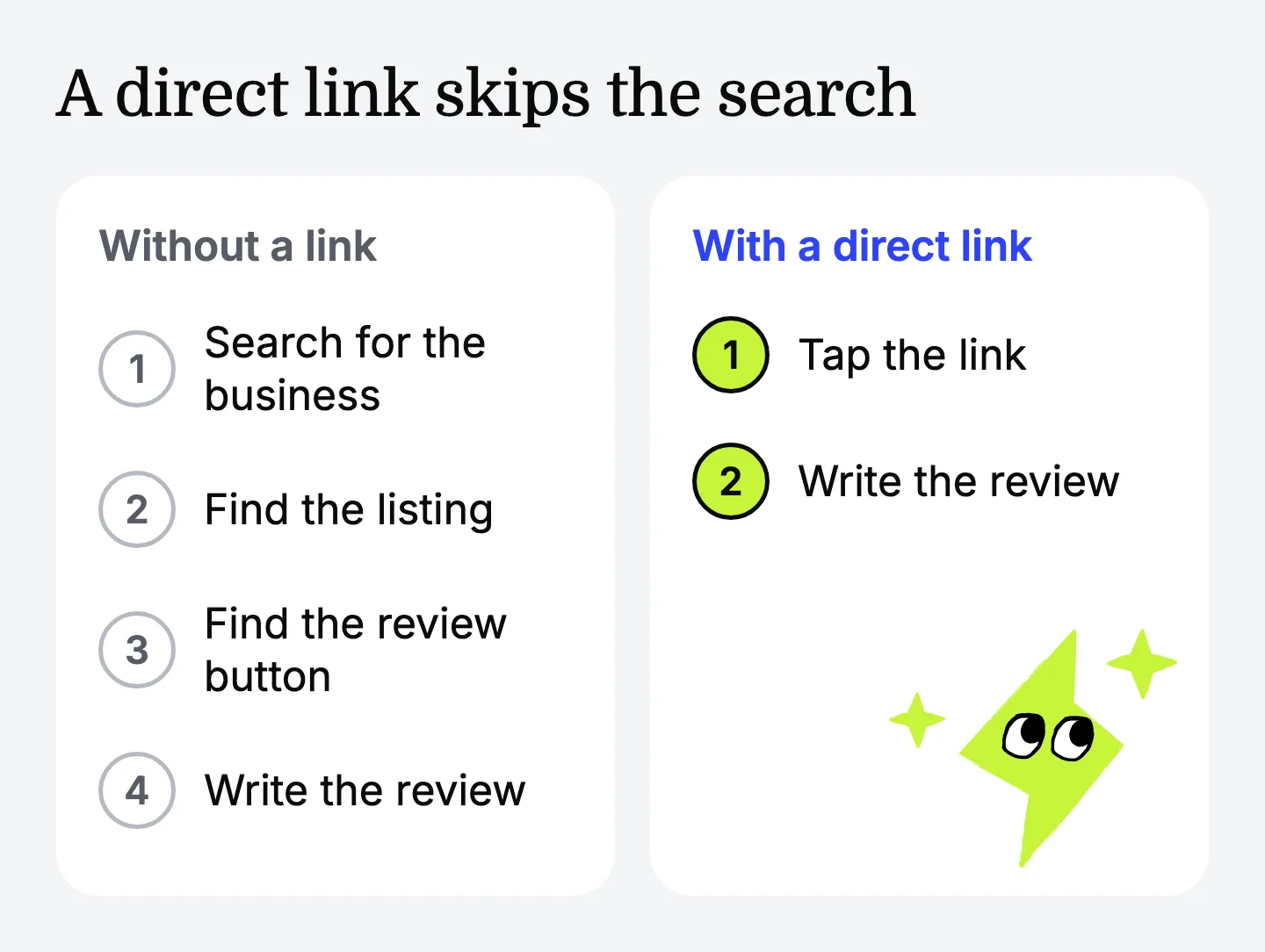
The Google review link generator turns your Place ID into both. Paste the ID, copy the link, and save the QR code as an image. It takes about a minute, and you don't need to create an account.
Open the link yourself before you share it. Customers need to be signed in to a Google Account to leave a review, so if your own test asks you to sign in, that's expected.
3. Ask every customer
Asking only the customers you expect to be happy feels safe, but Google's review policy doesn't allow selectively asking for positive reviews. It also gives you a weaker picture of how things are going.
Make the request part of how you finish a job, so it goes to everyone. Google's help page also notes that a mix of feedback feels more trustworthy to the people reading it.
4. Ask at the right moment
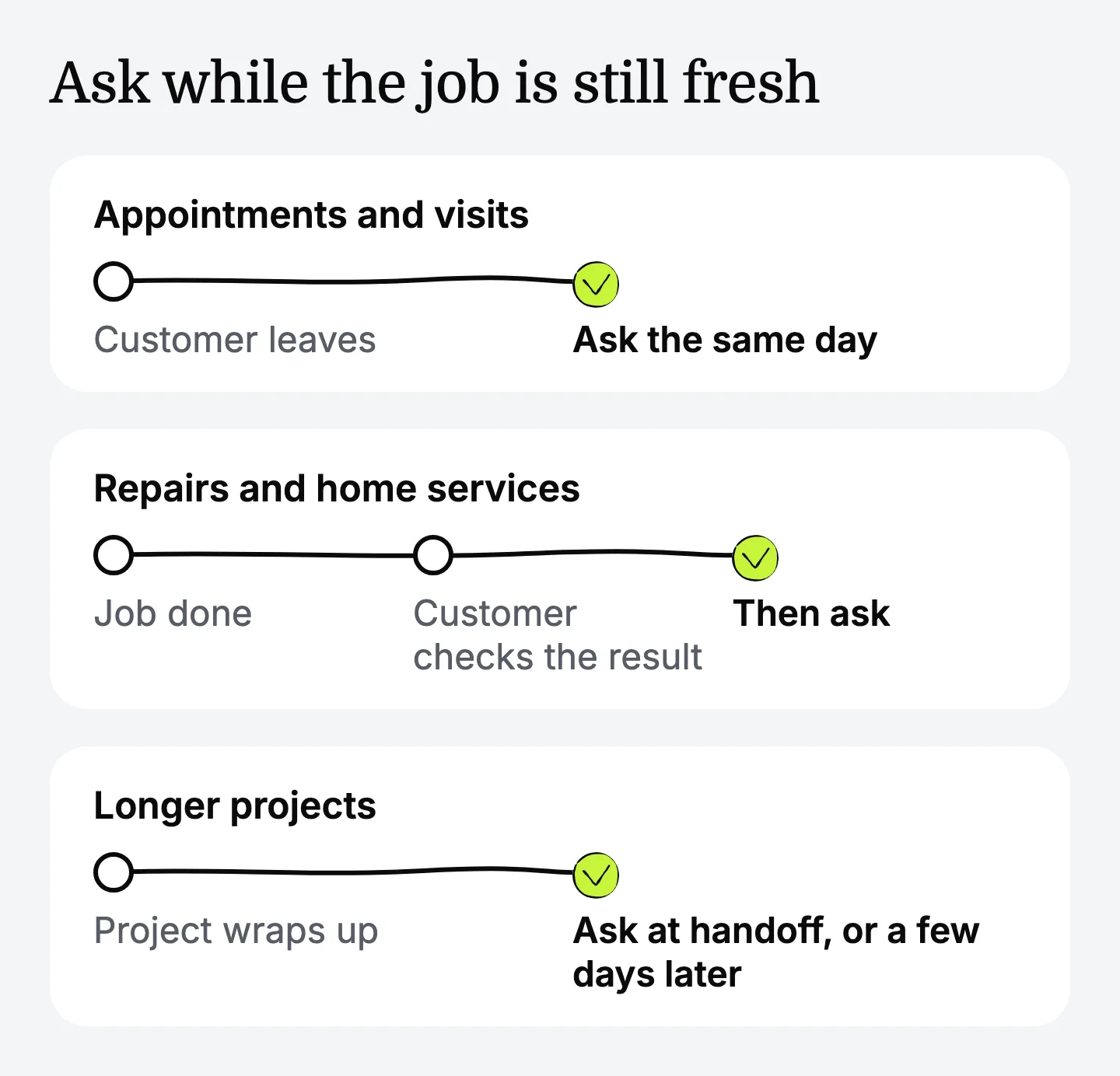
The best time is while the job is still fresh, usually the same day or the day after. The right moment depends on the work:
- Appointments and visits: the same day, once the customer has left.
- Repairs and home services: after the job is done and the customer has checked the result.
- Longer projects: at handoff, or a few days later if they need time to use what you delivered.
Send one request and, at most, one follow-up. A customer who stays quiet after that has made a choice.
5. Keep the request short and personal
A good request names the job, asks how it went, and gives one link.
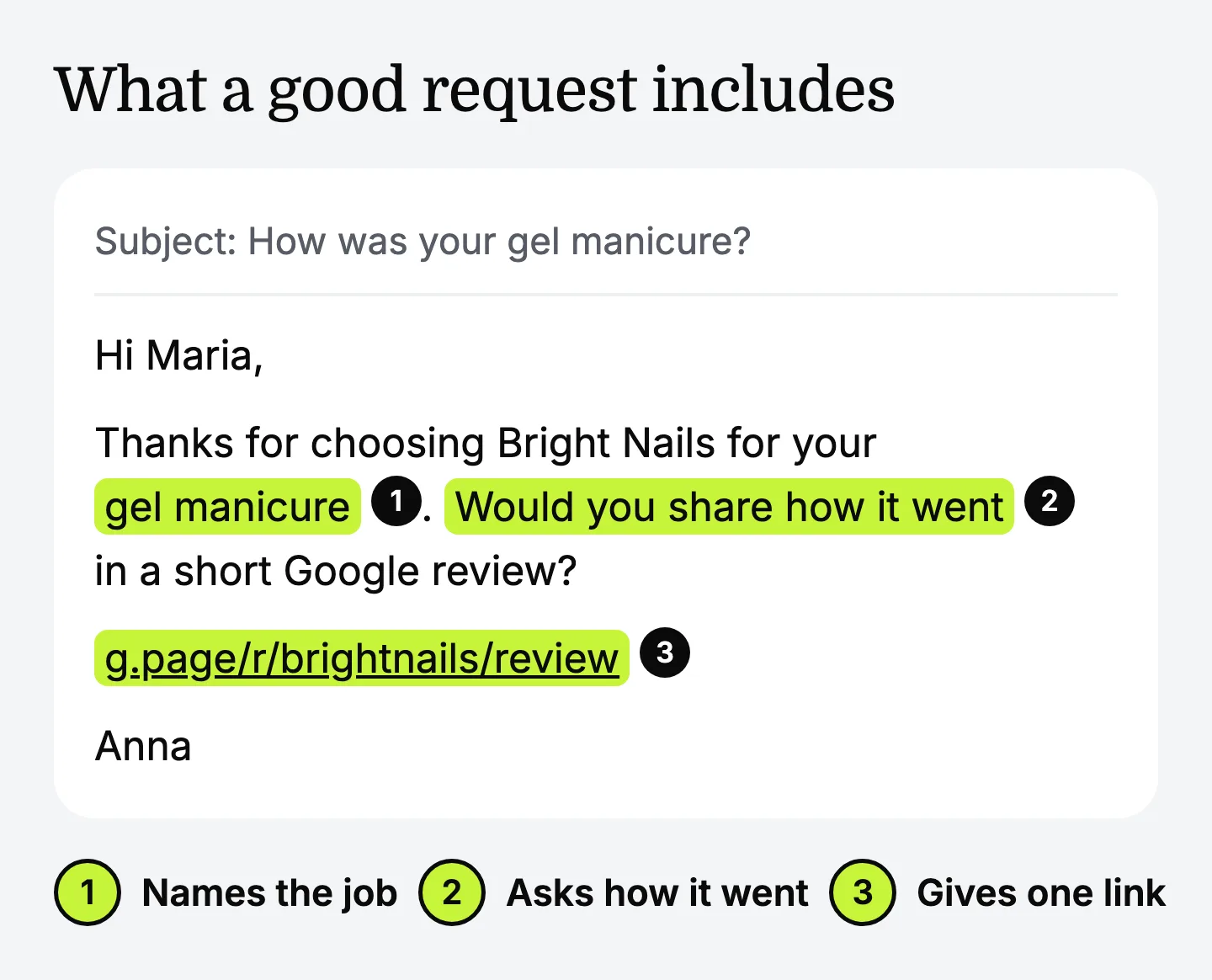
Here's a template you can copy:
Text messages work too, if the customer agreed to hear from you by text. Keep them to one or two sentences with the link at the end.
The review request email generator fills in your details and writes an email and a text in a short, friendly, or formal tone.
6. Put the QR code where customers already look
A QR code works when someone has a phone in hand and a minute to spare. Good places include:
- Receipts and invoices
- A small sign near the register
- A card you hand over or leave behind after a job
- The follow-up paperwork for a repair or an installation
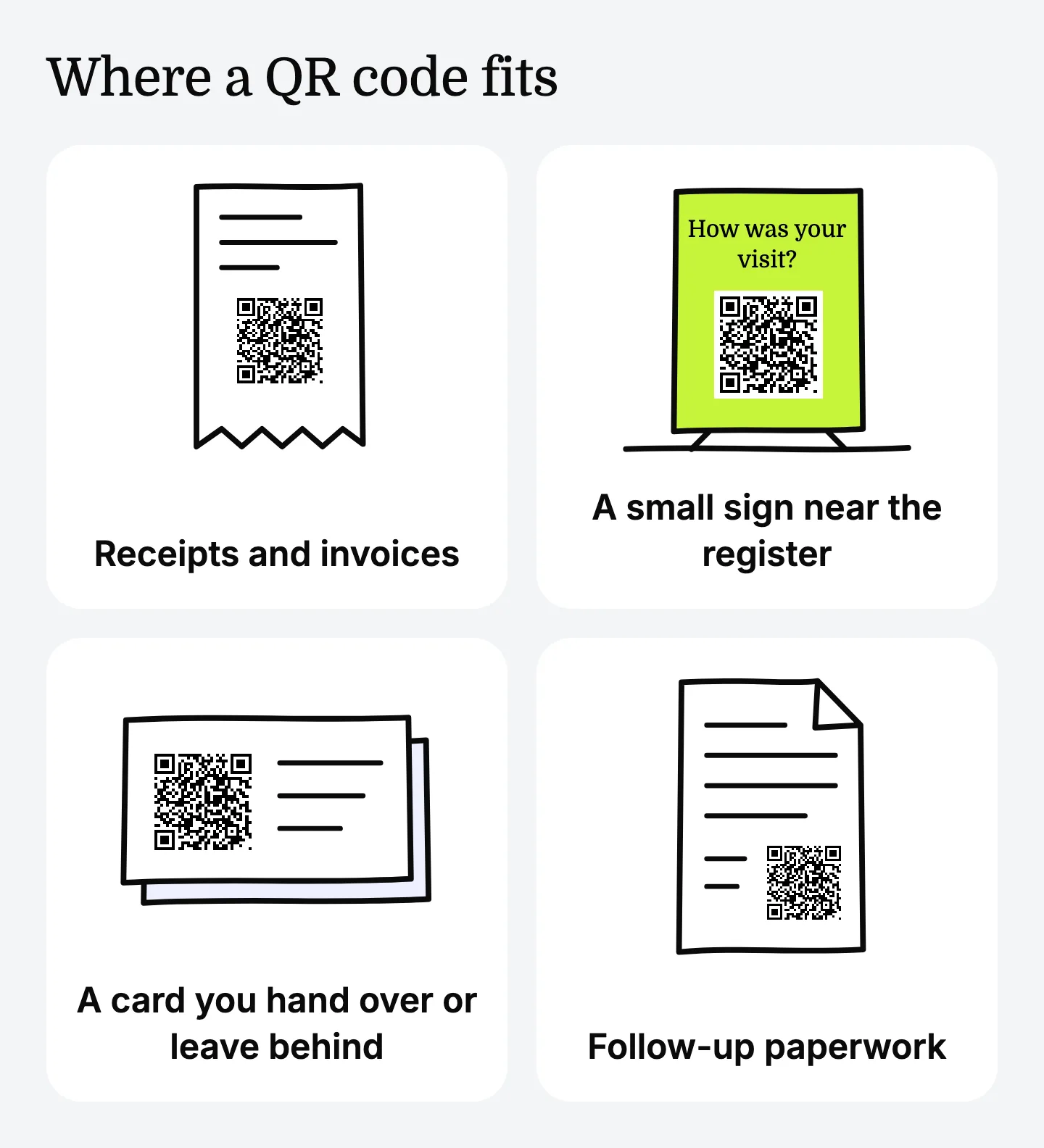
Keep it optional. Google's policy says businesses shouldn't require or pressure customers to leave a review on the premises, so a sign is fine and standing over someone isn't.
7. Reply to the reviews you get
Replies show the next reader that a person runs this business. For a good review, a sentence that thanks the customer and mentions the job is enough. Try to answer in a few days, so the reply still connects to the visit.
How to handle a negative review
A difficult review is written for one customer, but your reply is read by everyone who comes later. Keep it short and steady:
- Check what happened before you write anything.
- Thank the customer and name the issue in their words.
- Share only facts you can stand behind.
- Offer one direct way to follow up, so the details move out of public view.
Here's what that looks like:
The negative review response generator builds a reply like this from what happened and the tone you choose, with a full and a short version.
You can fix a problem for a customer, but keep it separate from their review. Google's policy doesn't allow offering money, discounts, or free services in exchange for changing or removing a negative review. If a review breaks the policy, for example it comes from someone who was never your customer, report it through your Business Profile.
What to avoid when asking for reviews
These come straight from Google's policy, and they're the fastest way to put your reviews at risk:
- Rewards for reviews. No payment, discounts, or free goods and services in exchange for a review.
- Asking only happy customers. Send the same request to everyone.
- Requesting specific content. Leave out "please mention" and "five stars."
- Pressure on the premises. A sign or a card is fine. Handing someone a tablet and waiting isn't.
- Reviews from people who weren't customers. That includes staff, friends, and paid services.
Make it a routine
Steady reviews come from asking every time, until asking becomes part of finishing the job.
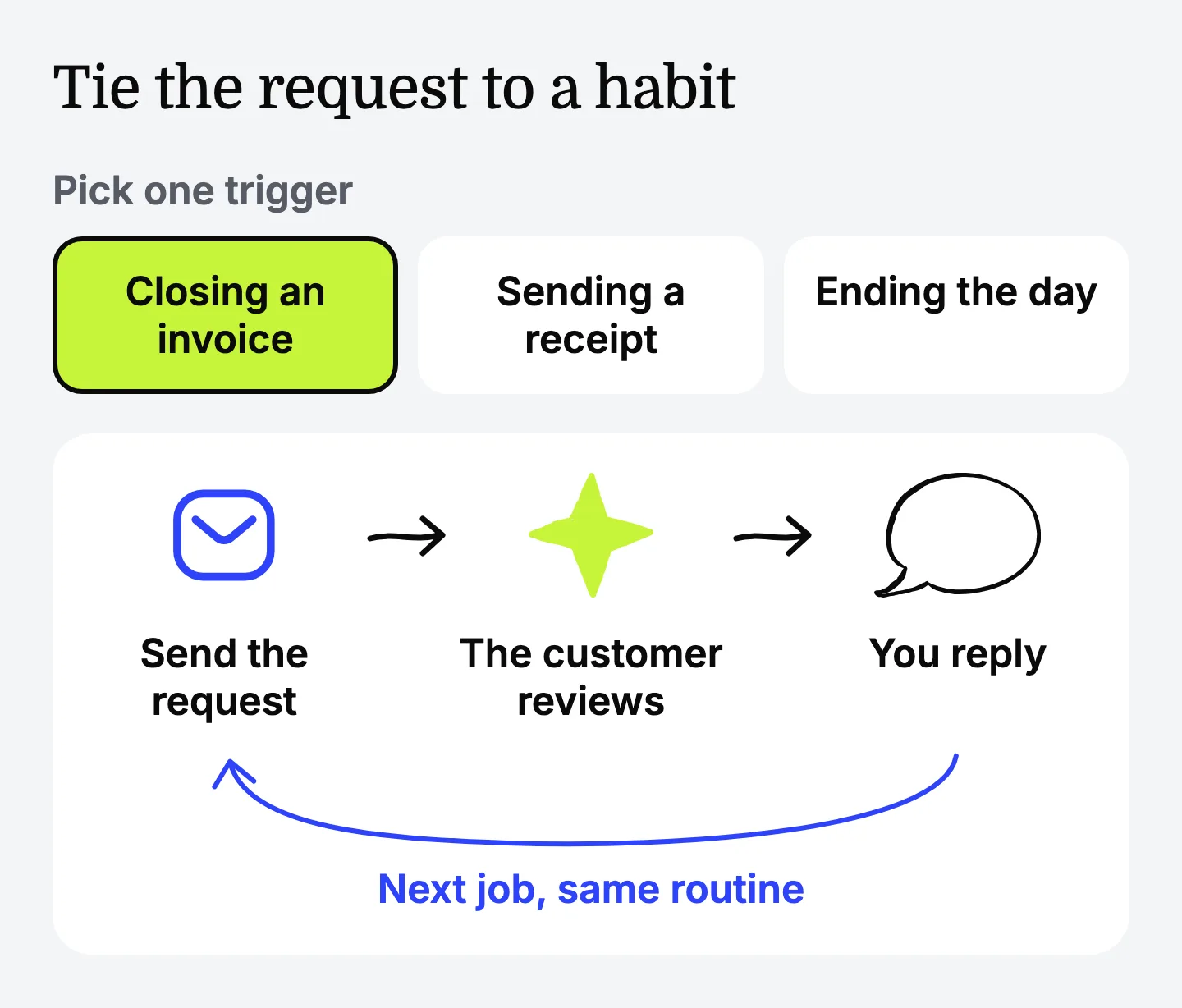
Pick one trigger and tie the request to it: closing an invoice, sending a receipt, or ending the day by looking at who you served. If writing the message is what keeps slipping, Empacer can draft the request from a few words in your tone. By default, nothing is sent until you approve it.
FAQ
How do I get a link to my Google reviews page?
Find your Place ID with Google's Place ID finder and paste it into the Google review link generator. You get a direct link that opens your review form, plus a QR code.
Is it allowed to ask customers for Google reviews?
Yes. Google's help pages show businesses how to share a review link with customers. What the policy doesn't allow is offering rewards, asking only happy customers, requesting specific content, or pressuring people on the premises.
Can I offer a discount for a Google review?
No. Google's policy doesn't allow payment, discounts, or free goods and services in exchange for a review, and reviews posted that way can be removed.
How many Google reviews does a business need?
There's no set number. A steady flow of recent reviews gives the next customer more to go on than a one-time push.
Do customers need a Google account to leave a review?
Yes. Google says customers must be signed in to a Google Account to leave a review. They can set one up with a non-Gmail email address.